Guide
How to use Handy ABA Tools
This guide tells you the purpose of each tool, when to use it, and how to use it. It also gives the procedure for learner profiles. The procedure makes sure that each response goes to the dashboard of the correct learner.
Tool index
All tools work in guest mode. In guest mode, the app saves no data. If you set a tool to On for a learner, the app saves the responses of that learner automatically.
Learner activities
Give these tools to the learner during sessions.


For BCBAs & adults
Tools for probes, observation, and assessments. You operate these tools yourself.
| Tool | Use it for | Data type | Saved data |
|---|---|---|---|
| Learner activities | |||
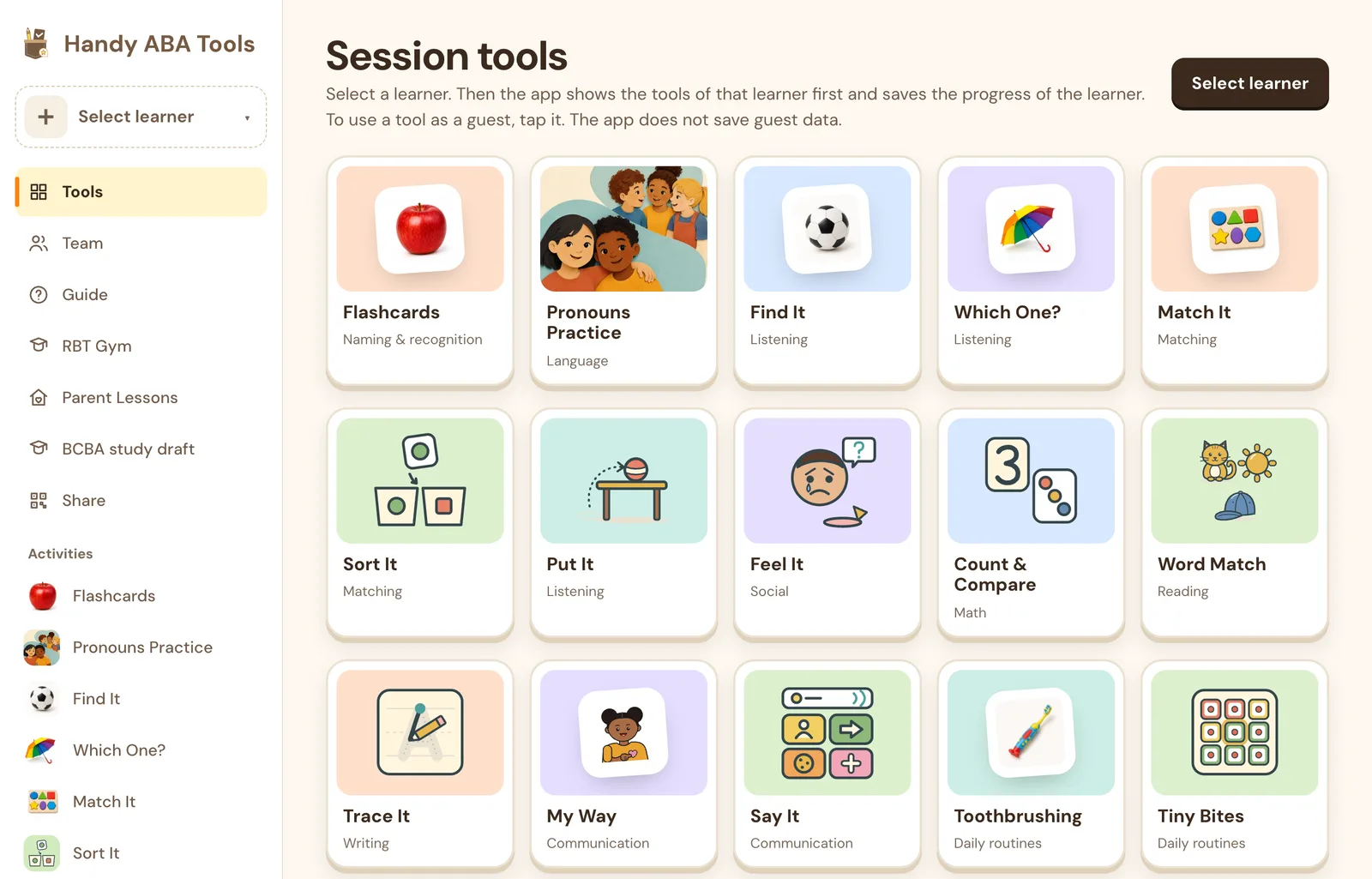
| Flashcards | Naming pictures (tacts) in discrete trials | Trials · accuracy | each scored card |
| Pronouns Practice | Pronouns: select the picture, or find and read the written word | Trials · accuracy | the first touch on each trial, or your score of each word card that the learner reads aloud |
| Find It | Listener responding: the learner hears a word and taps the picture | Trials · accuracy | the first tap on each trial, and skips |
| Which One? | Listener responding by function, feature, and class | Trials · accuracy | the first tap on each trial, and skips |
| Match It | Visual matching to sample | Trials · accuracy | the first tap on each trial, and skips |
| Sort It | Sorting pictures by class, function, or feature | Trials · accuracy | the first bin that the learner selects for each picture, and skips |
| Put It | Following instructions with in, on, under, next to, and in front of | Trials · accuracy | the first item that the learner puts in a place on each trial, the place, and skips |
| Feel It | Reading feelings in social situations: how a person feels, why, and what to say | Trials · accuracy | the first answer to each question, tapped by the learner or scored by you, and skips |
| Count & Compare | Early math: numerals 1–5, counting, matching numbers to amounts, more and less, and size | Trials · accuracy | the first tap on each trial, and skips |
| Word Match | Early reading: matching printed words to pictures, and letters | Trials · accuracy | the first tap on each trial, and skips |
| Trace It | Pre-writing and handwriting: tracing lines, shapes, letters, and numbers | Trials · accuracy | the accuracy of the first trace of each target, and the trace picture when Save trace pictures is On |
| My Way | A functional request (mand), for example in FCT | Frequency · count | each button press |
| Say It | A talker (AAC) for requests and first sentences, with every press counted | Frequency · count | each word that the learner taps, and if it was on their own, prompted, or an adult model |
| Toothbrushing | A 9-step toothbrushing chain (task analysis) | Task analysis · steps | each step when the learner completes it |
| Tiny Bites | Bite shaping for food selectivity, with a choice board | Trials · accuracy | each step that the learner selects, its color, and your score |
| Token Board | A token economy: a themed token board or a gem jar, with a picture menu of how to earn | Token economy · tokens given and trades | each token or gem that you give, with the behavior, and each trade |
| For BCBAs & adults | |||
| Observe | Interval recording of play, social behavior, and group skills | Intervals · percent of intervals | a yes or no for each behavior in each interval |
| Probe Day | Cold probes, mastery by probe, and maintenance across every trial tool | Probes · first trial each day | no new data. It uses the first trial of each target each day |
| Milestones Tracker | Scoring and graphing 170 milestones across 16 domains | Assessment · scores | your score for each milestone |
| Barriers Checklist | Scoring 24 learning barriers from 0 to 4 | Assessment · scores | your score for each barrier |
| Transition Readiness | Scoring 18 transition areas, with tool data alongside | Assessment · scores | your score for each area |
Learner profiles: the full procedure
A learner profile keeps responses, assessment scores, and dates. The profile has a generated name and a learner ID. A generated name does not make these records anonymous.
Each learner gets a name with a color and an animal, for example “Blue Otter.” You cannot type real names. Saved records connect to the ID of the learner. Keep your own record of which learner is which child.
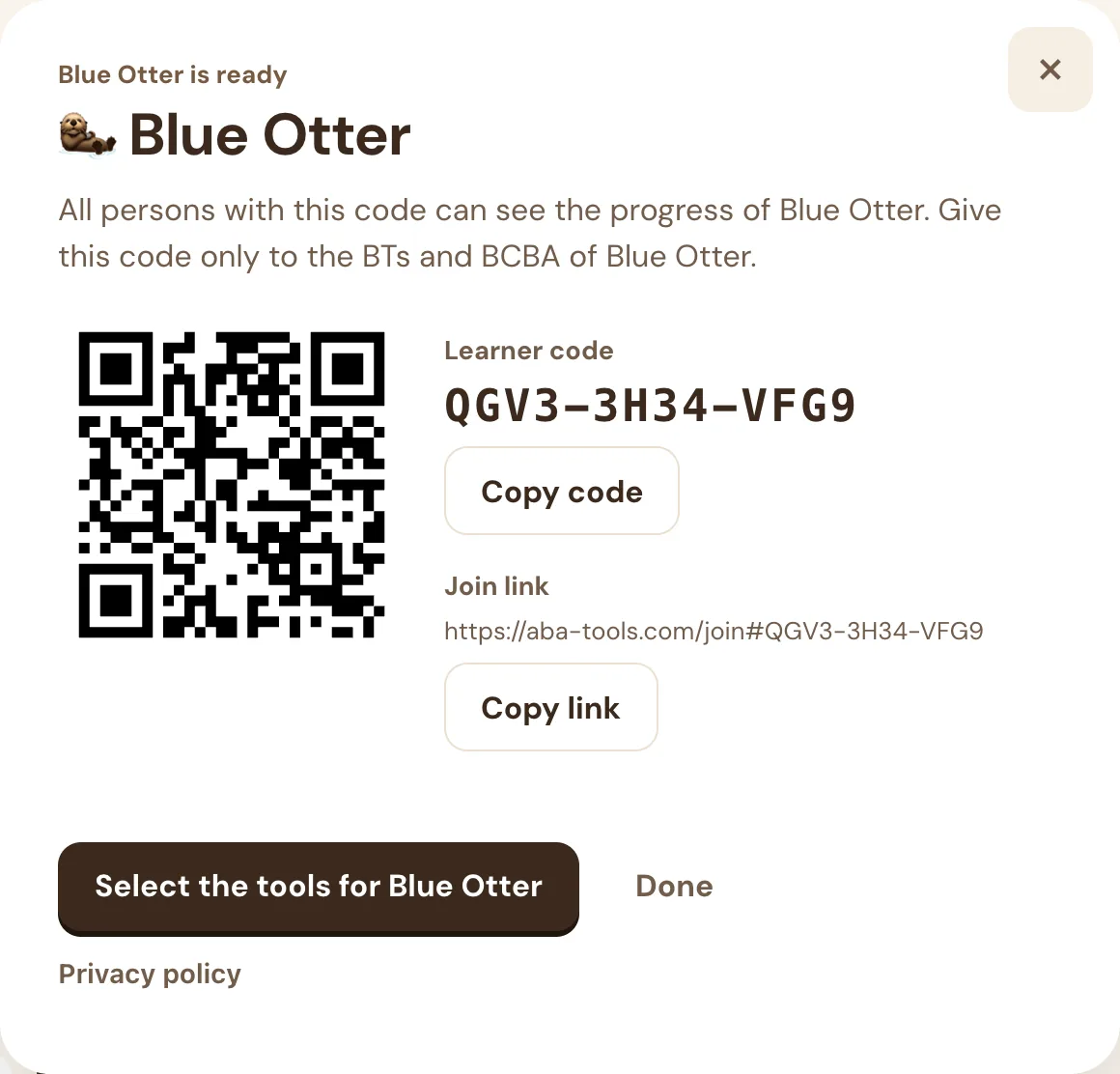
Privacy policyEach learner has a 12-character code, for example K7QM-4XR2-P9TW. All persons with the code can see and save the progress of that learner. Give the code only to the BTs and the BCBA of that learner.
Each device keeps its own list of learners. There is no sign-in and no public list. To add a learner to a device, use the code of the learner one time. After that, select the learner in the learner menu.
A new learner has no tools. Set the tools in the program of the learner to On. Only these tools save data. Each of these tools gets a card on the dashboard.
Part 1 · Create a learner BCBA, one time for each learner
Open the learner menu
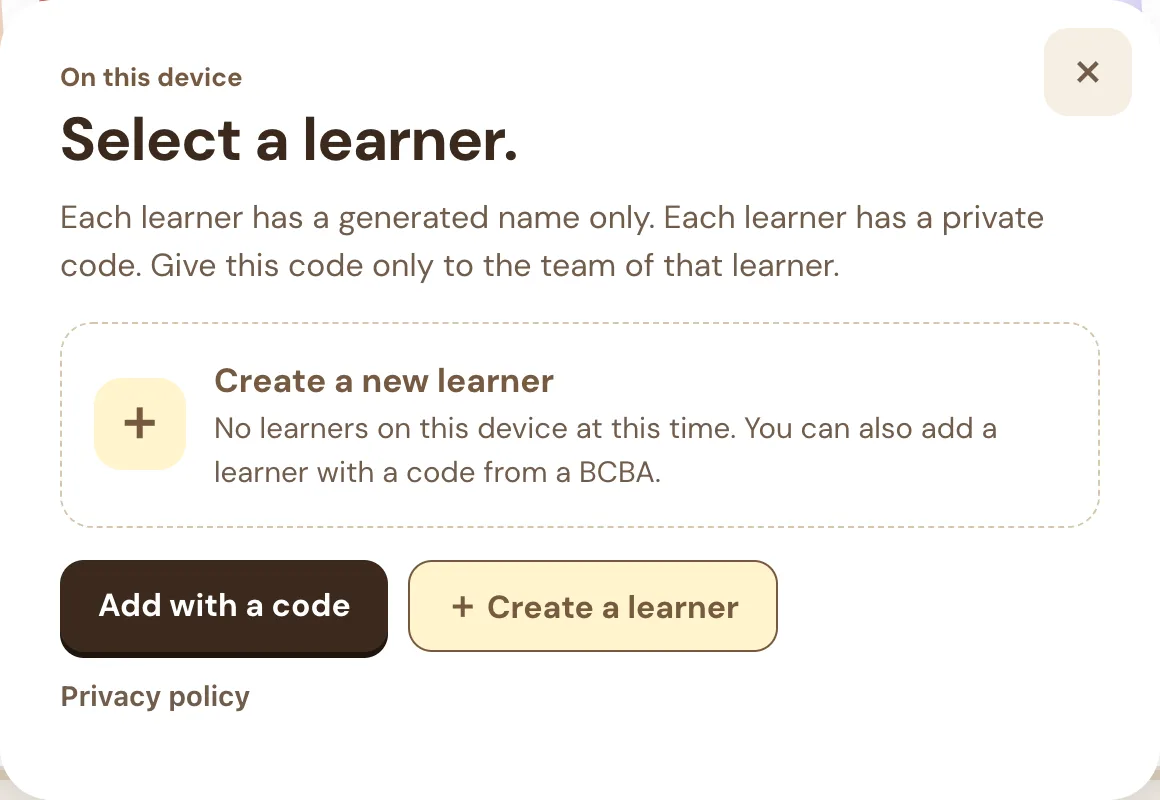
On the home page, tap Select learner.
You can also tap Select learner at the top of the sidebar, or the learner button in an activity.
Select “Create a new learner”
If you have a code from a BCBA, go to Part 3.
The first time, the menu opens on Enter a learner code.
- Tap Back to see the options.
- Tap Create a new learner.
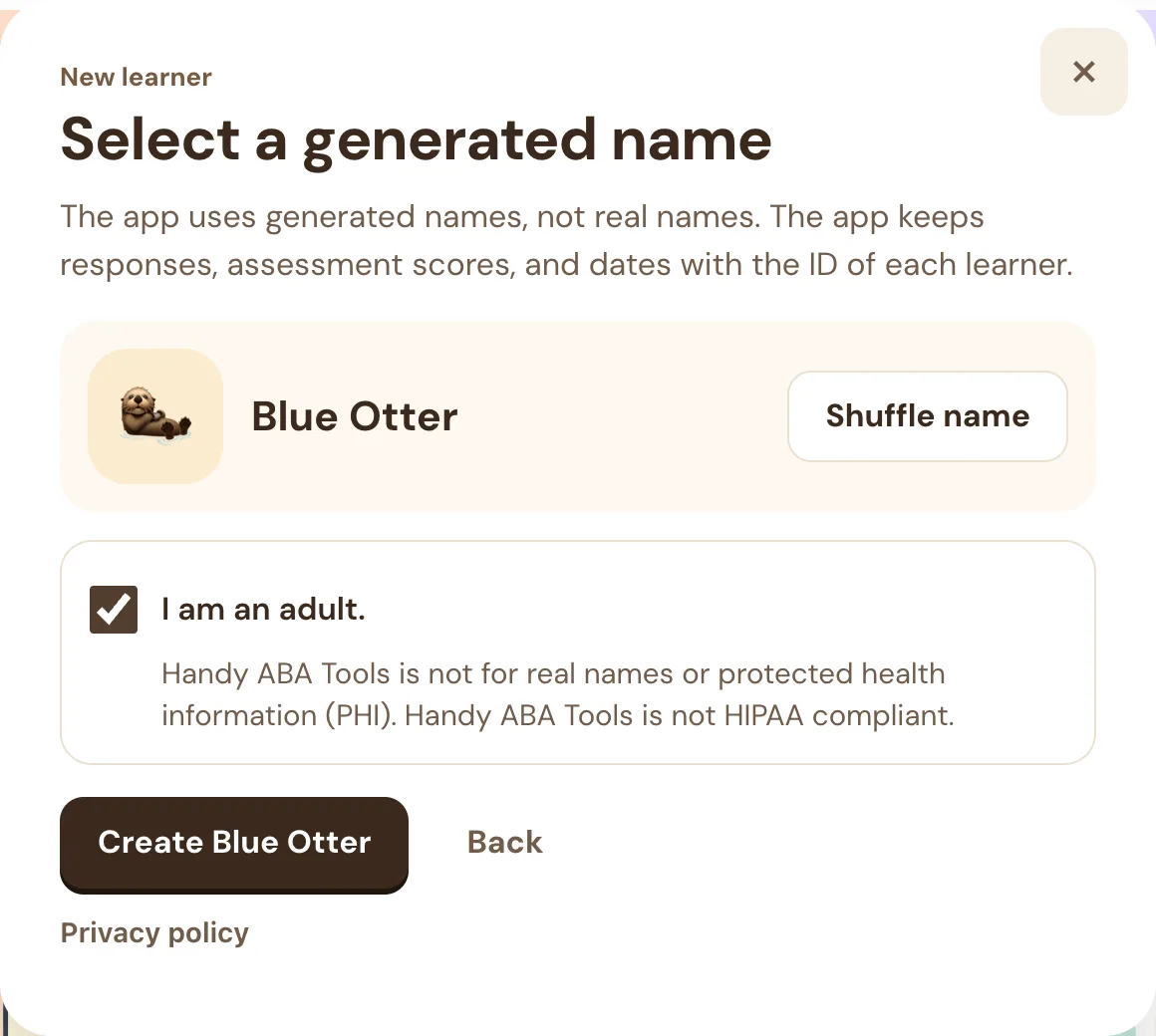
Select a generated name
- Tap Shuffle name until you see a name that you like.
- Tap the box I am an adult. Create works only after you tap the box. Handy ABA Tools is not for real names or protected health information (PHI), and it is not HIPAA compliant.
- Tap Create Blue Otter. The button shows the generated name.
- In your own records, write the real learner next to the generated name. Do not write real names in Handy ABA Tools.
Save the code
Handy ABA Tools shows the code, the join link, and the QR code of the new learner. You can open this screen again at any time from Share. You do not have to copy the code at this time.
Tap Select the tools for Blue Otter.
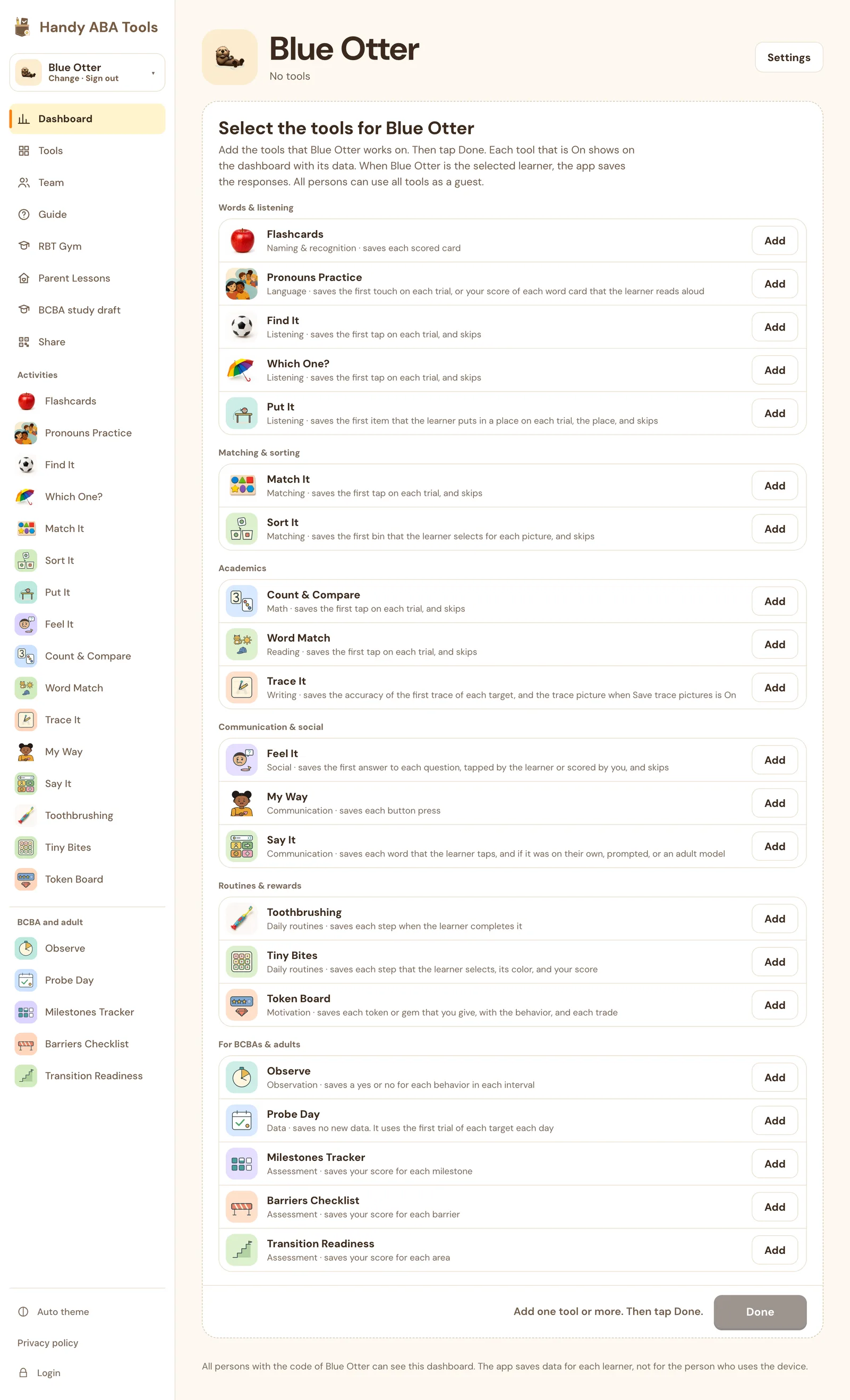
Part 2 · Select the tools BCBA
Add the tools in the program
The new dashboard lists all tools under Select the tools for Blue Otter, in groups by skill area. Each row tells what the tool saves.
- Tap Add only for the tools that this learner works on. The list stays on the screen. Each tool that you add shows On. To remove a tool that you added, tap Remove.
- When you have all the tools, tap Done at the bottom of the screen.
Each tool that is on gets a card
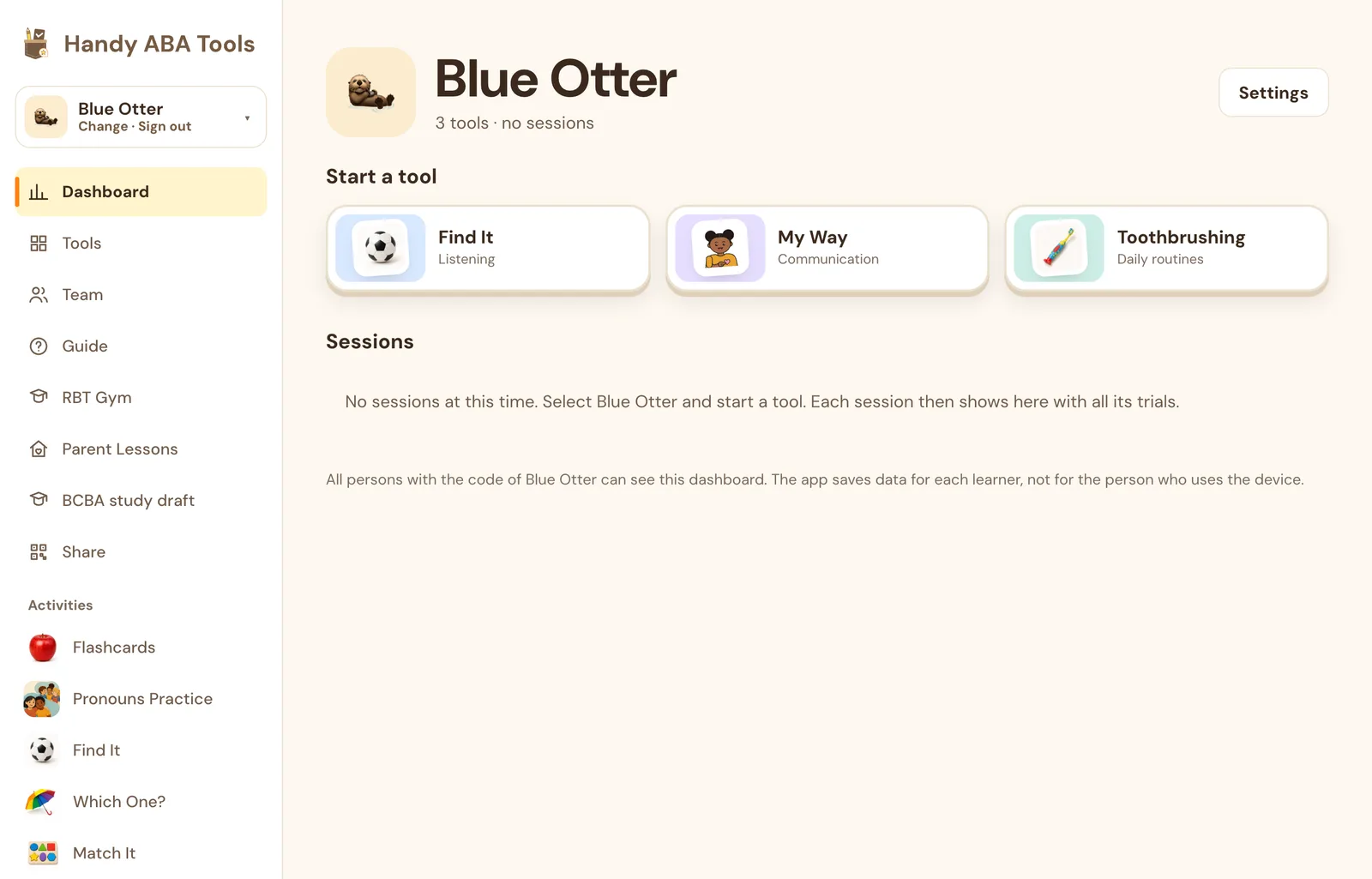
Each tool that is on shows as a picture card under Start a tool on the dashboard. When the learner is selected, the cards also show at the top of the home page.
To start a tool, tap its card. The sessions of the tool then show under Sessions, below the cards.
To change the tools or their options later:
- Tap Settings at the top of the dashboard.
- To add a tool, tap Add next to it in Add a tool.
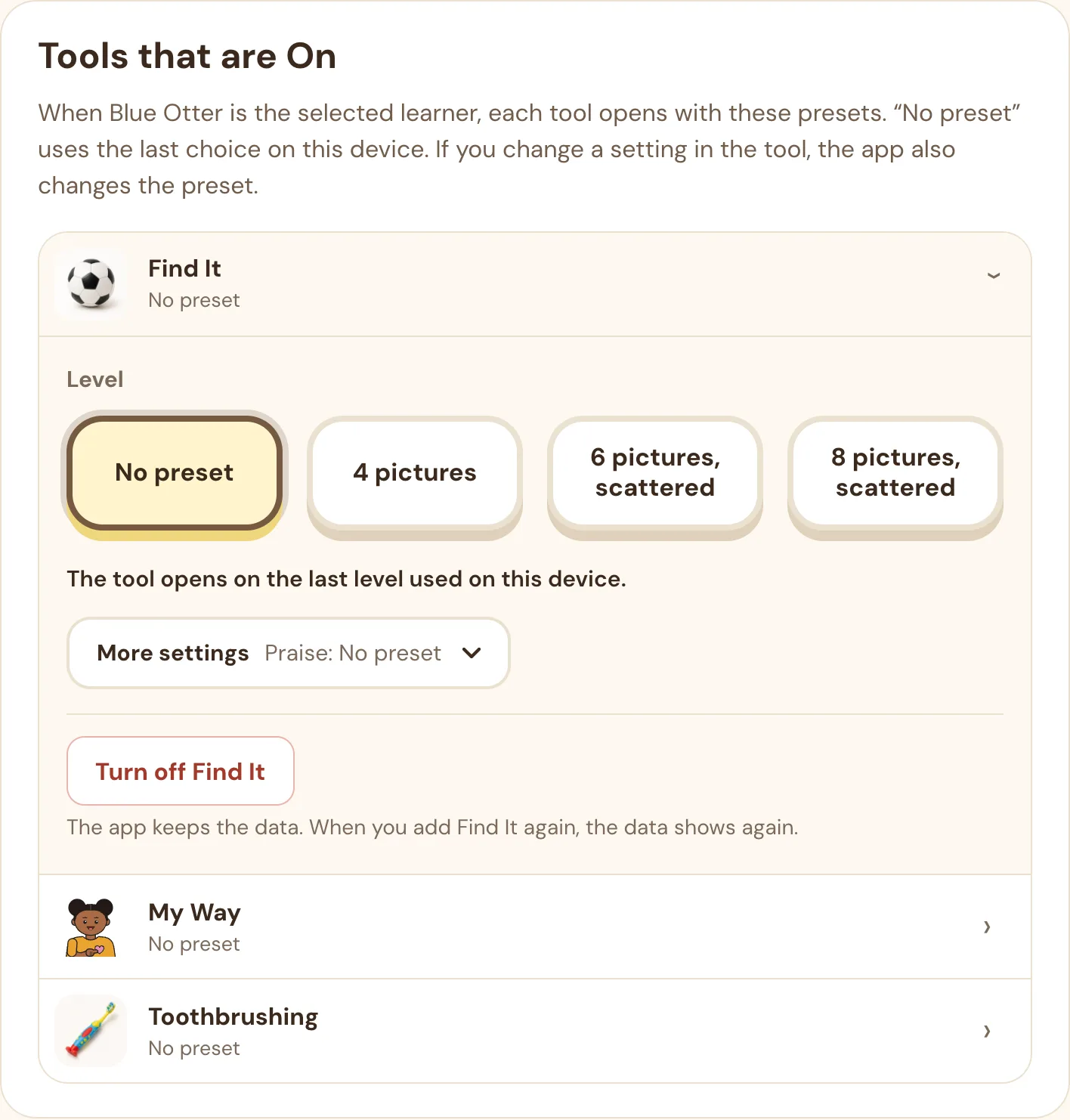
- To change a tool, tap it in Tools that are On. Then tap a level card. The other settings are in More settings.
The app saves these presets for this learner on all devices automatically.
Part 3 · Share with the team BCBA shares, BT adds
Open Share
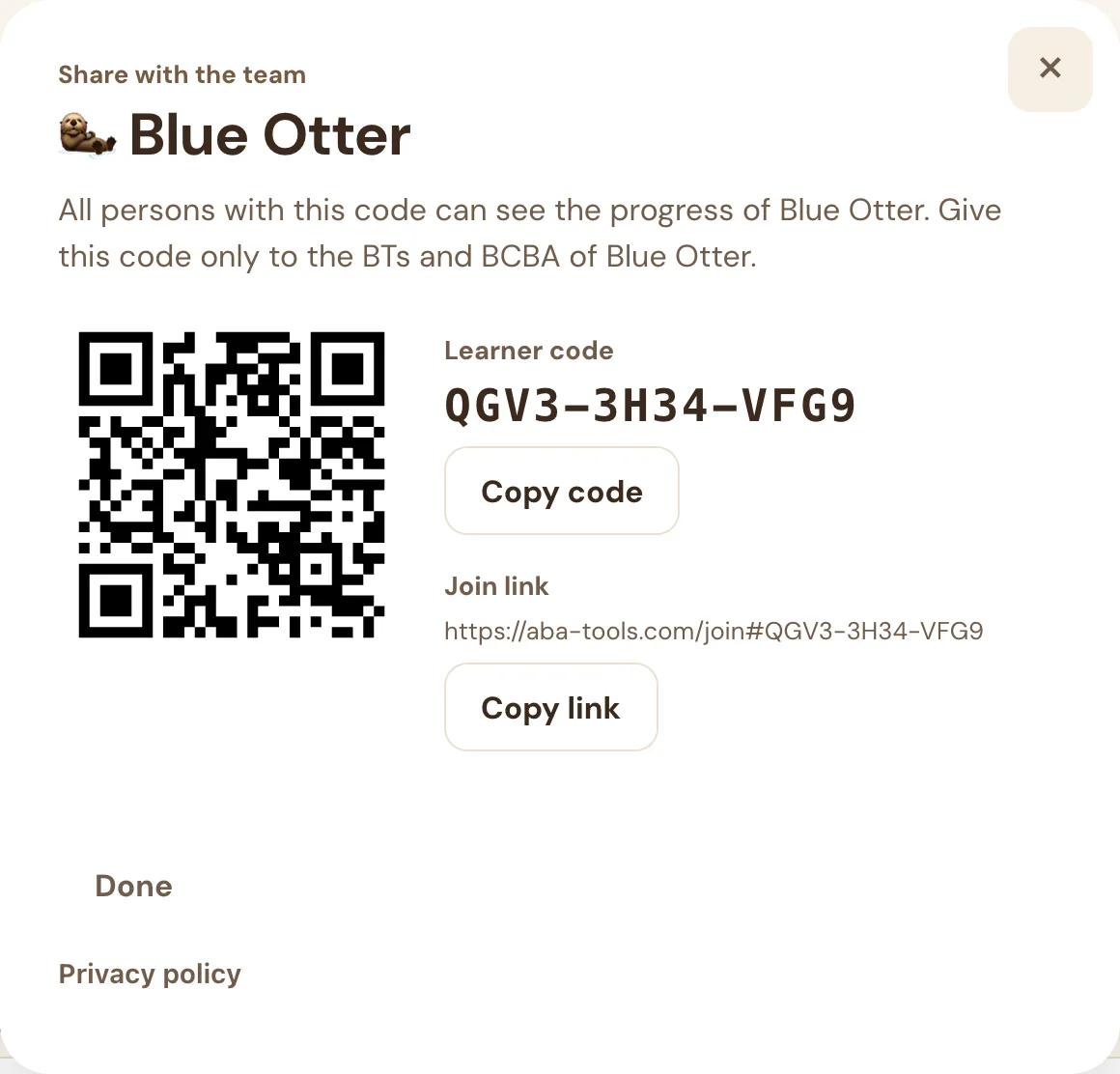
On the dashboard, tap Settings, then tap Share code. You can also tap Share next to the learner in the learner menu.
Give the code to the BT in one of these three ways:
- QR code: the BT scans the QR code with the camera of the tablet.
- Join link: tap Copy link. Then send the link privately to the BT.
- Code: read the code aloud or write it on paper. The app accepts letters and numbers that look alike (I and 1, O and 0) as the same character.
On the device of the BT, open the link or scan the QR code
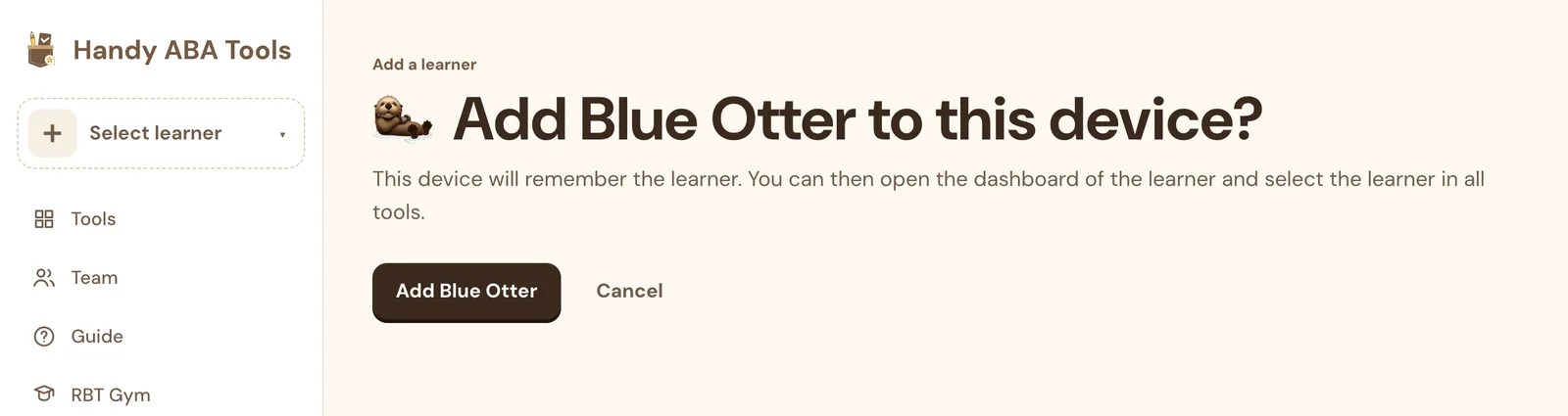
The join page shows the name of the learner and asks to add the learner.
Tap Add Blue Otter. The dashboard of the learner opens, and the learner is selected.
Alternative: type the code
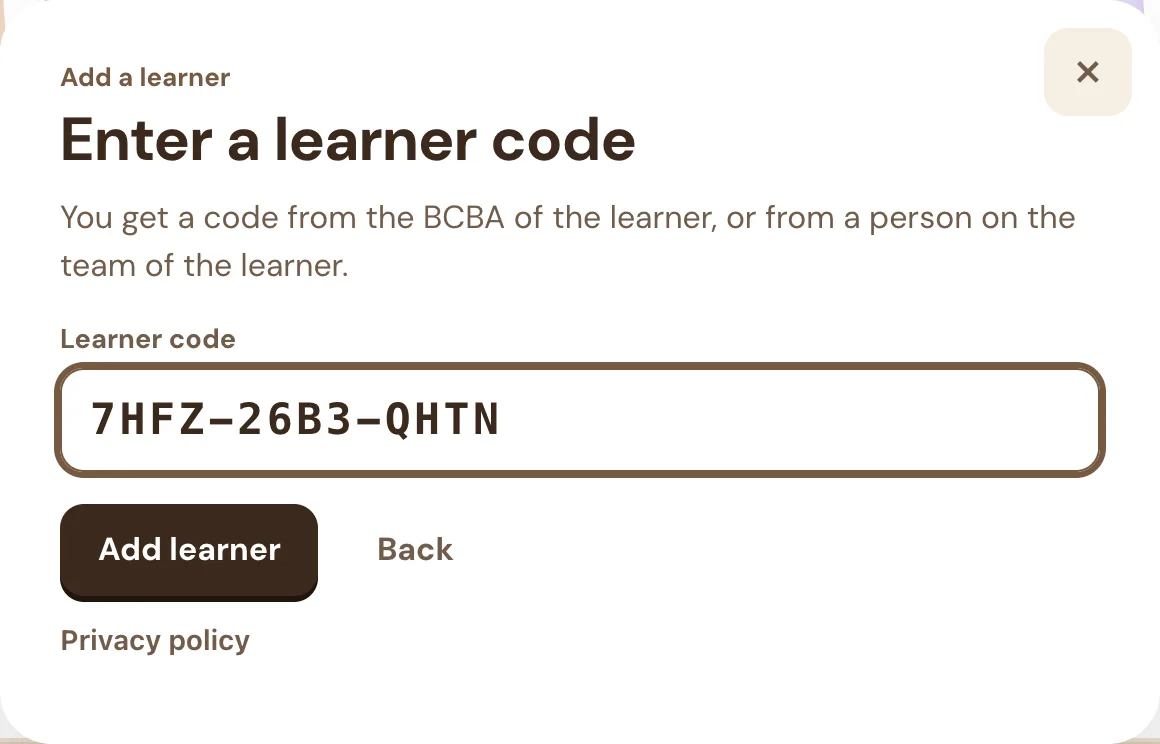
- Open the learner menu.
- Tap Add with a code.
- Type the 12 characters. Dashes and spaces are optional.
- Tap Add learner.
Part 4 · Record a session BT, each session
Select the learner
- Tap the learner button in the sidebar or in the activity bar.
- Tap the name of the learner. The app highlights the selected name.
When a learner is selected, the button shows Change · Sign out. To change to a different learner, tap the other name. To go back to guest mode, tap Sign out. The learner stays on this device.
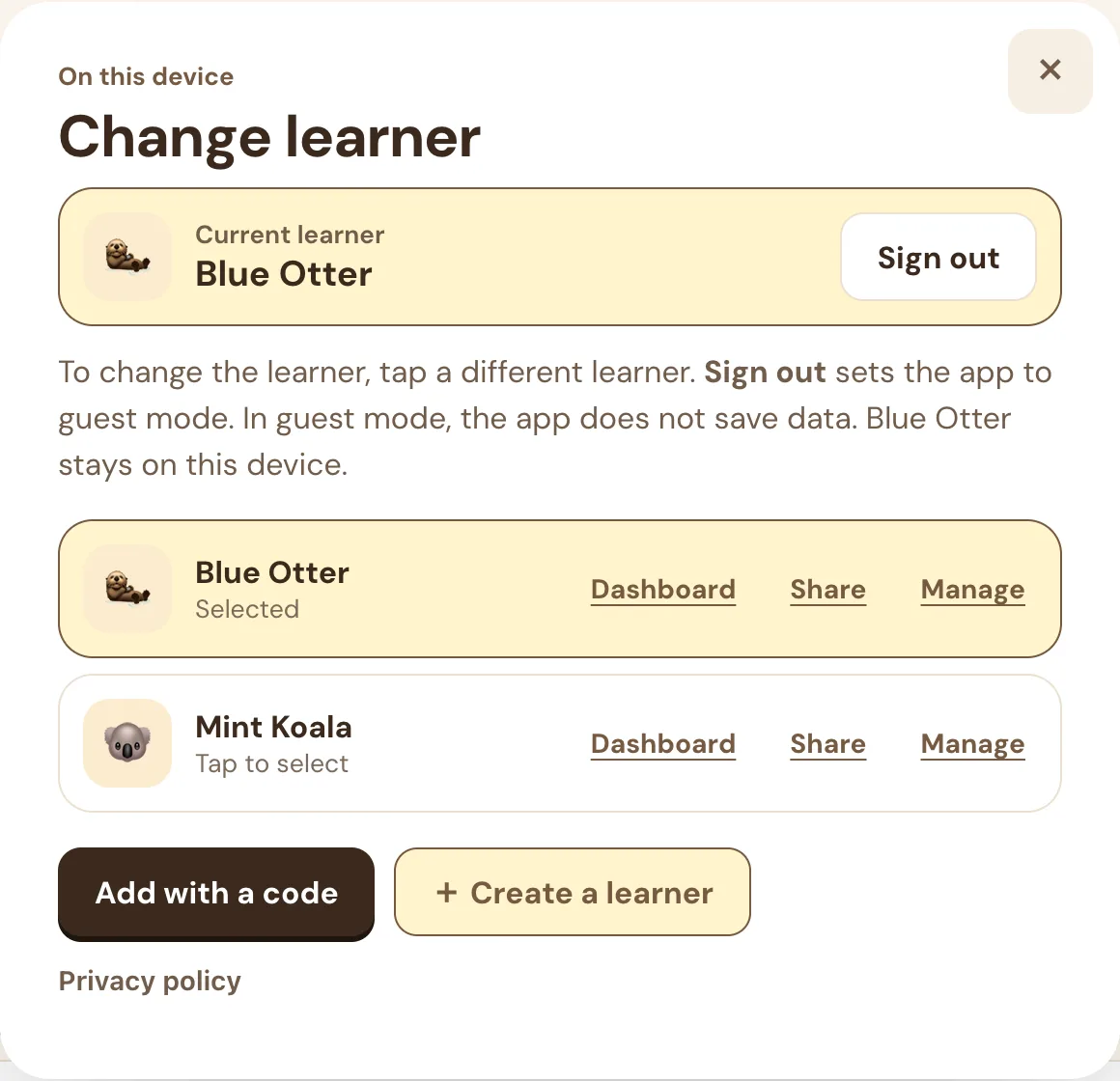
Each browser tab keeps its own selected learner. You can use two tabs for two learners at the same time. A new tab starts with the last learner that you selected.
Start the tool and examine the save status
- Tap Start on a dashboard card, or open the tool from the sidebar.
- If the tool has levels or modes, it opens on a setup screen. Tap a level card.
- To change other settings, for example Praise, tap More settings. When it is closed, the row shows the values of these settings.
- Tap Play. Play is always at the bottom of the setup screen.
- Before the first trial, examine the label next to the learner button.
The setup screen shows whose settings these are: Settings for Blue Otter, or Guest. Only on this device. The app keeps the last settings of each learner. If items are on the Next time list, tap Next time to see or remove them.
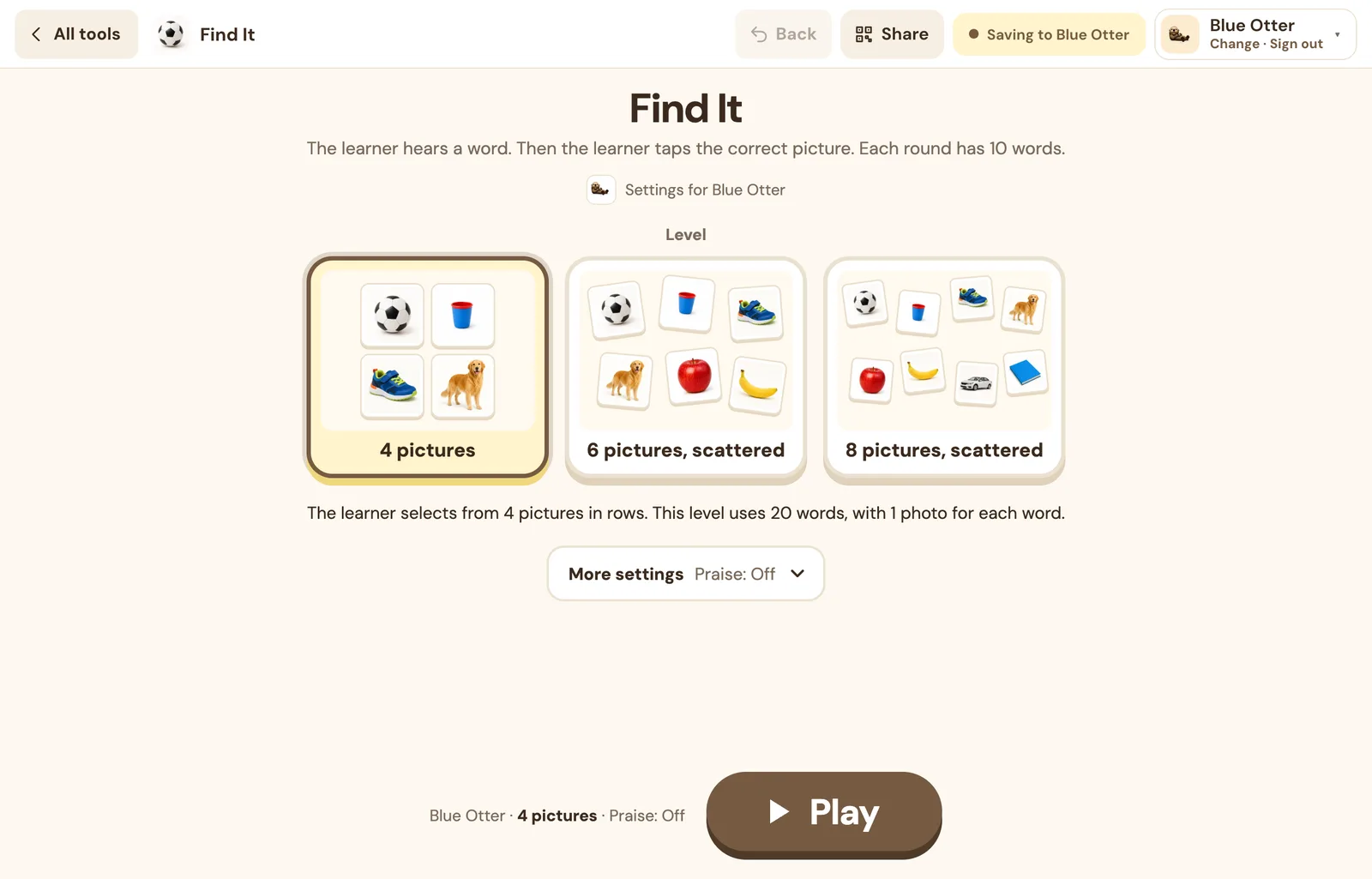
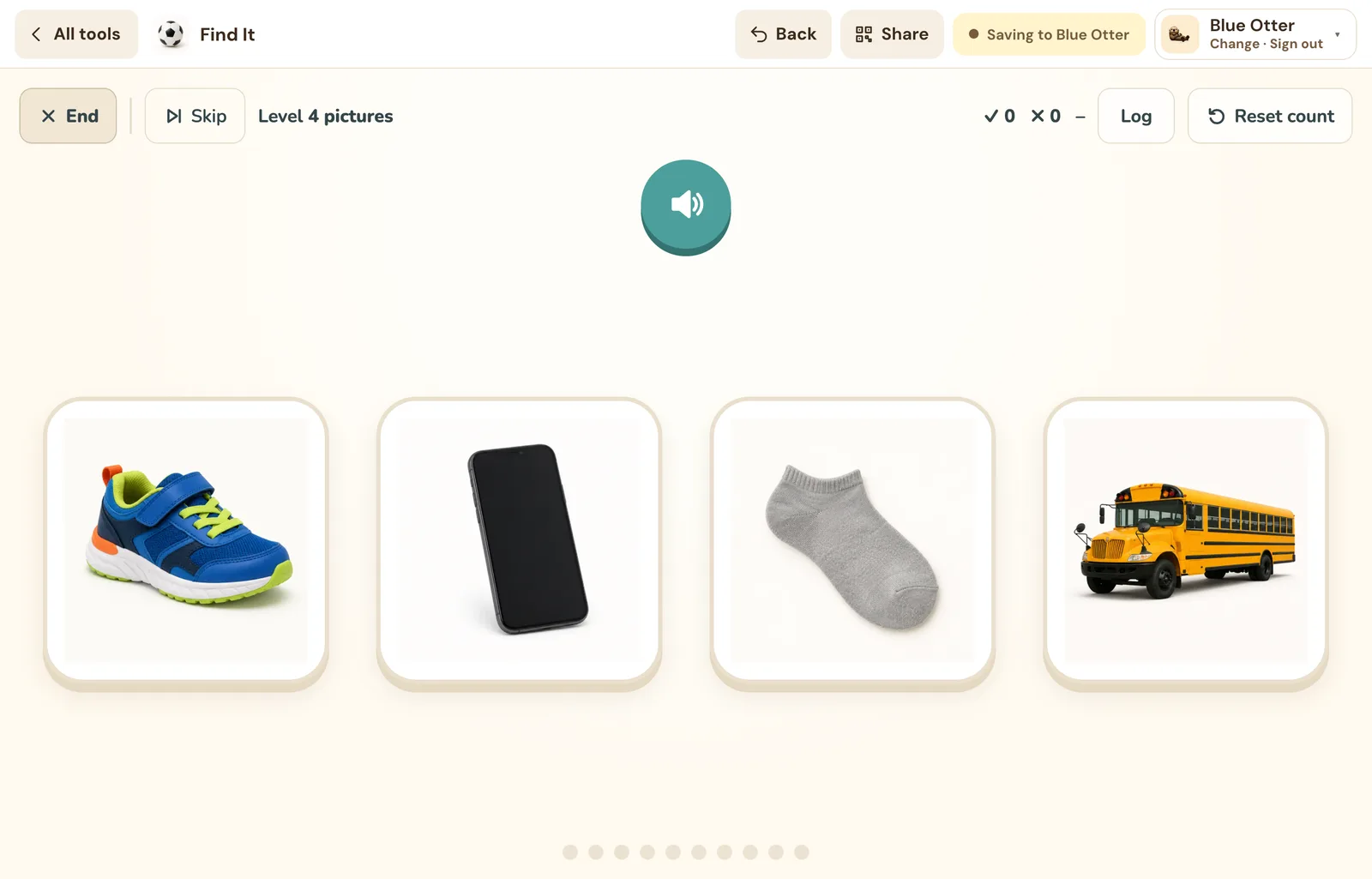
Saving to Blue Otter: the app saves the responses. 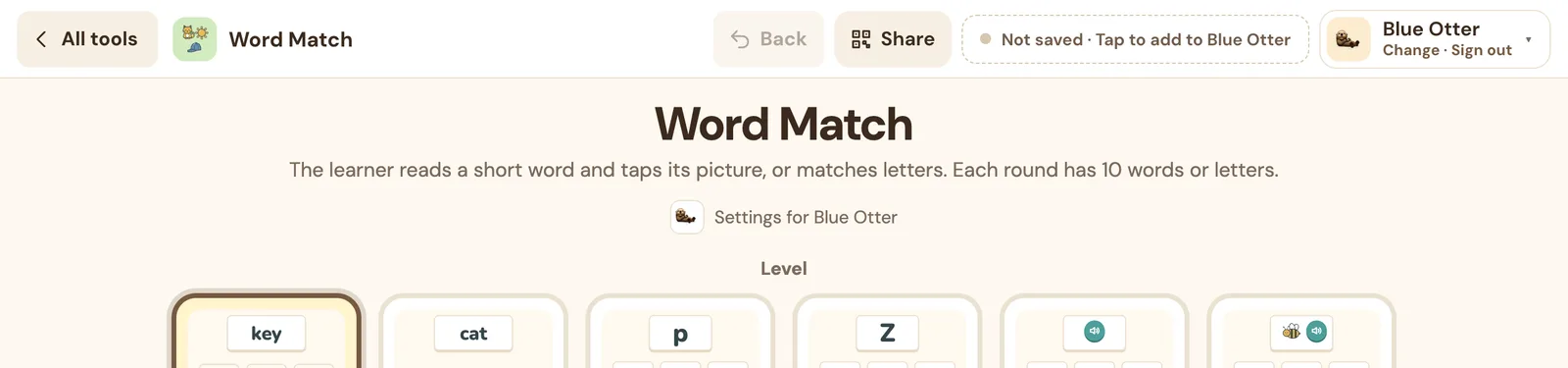
Not saved · Tap to add to Blue Otter: this tool is off for the selected learner. To set the tool to On, tap the label. Then the app saves the responses. 
Guest · not saved: no learner is selected. All functions work, and the app sends no data. Use the tool as usual
The app saves responses in the background. If the connection stops, the device keeps the responses. The app saves them when the connection is available again. Until then, the label shows a count, for example “3 not saved.” The app does not lose a response or count it two times.
A session ends when you reset the tool, change the learner, or tap Play on a setup screen. A session also ends after 30 minutes with no activity.
Part 5 · Read the dashboard BCBA and BT
One page: start a tool, then the sessions
To open the dashboard, tap Dashboard in the sidebar, Open dashboard on the home page, or Dashboard in the learner menu.
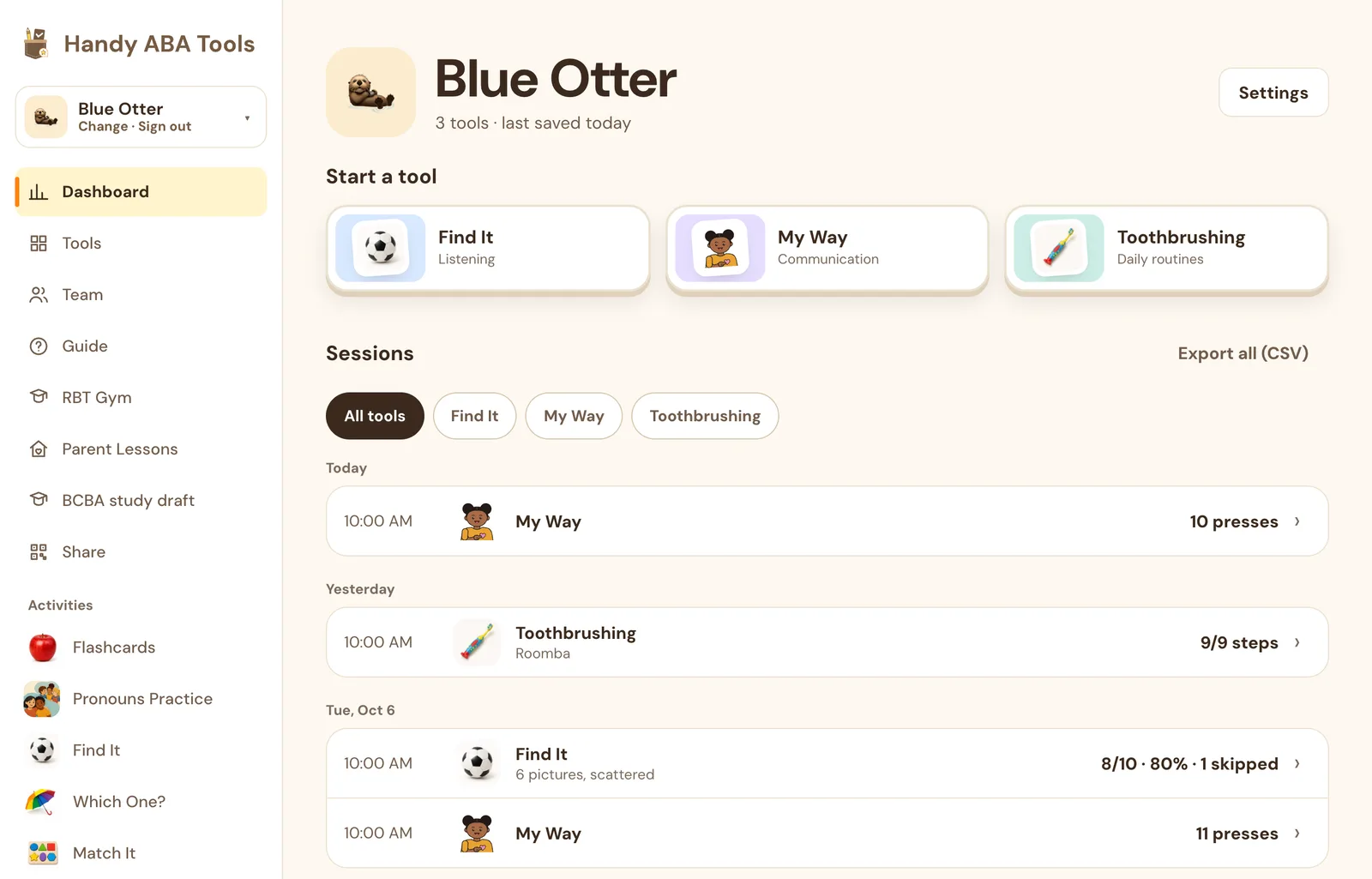
The dashboard is one page. At the top, Start a tool shows a card for each tool that is on, with the setup of the learner. The tools that you used last on this device are first. To start a tool, tap its card. The cards show no statistics.
Below the cards, Sessions shows a list of all sessions. The newest session is first, and the sessions are in groups by day. Each row shows the time, the tool, the level or mode, and the result, for example 8/10 · 80%.
One tool and one session
To show one tool only, tap the button of the tool above the list. To show all tools again, tap All tools. The device keeps your selection.
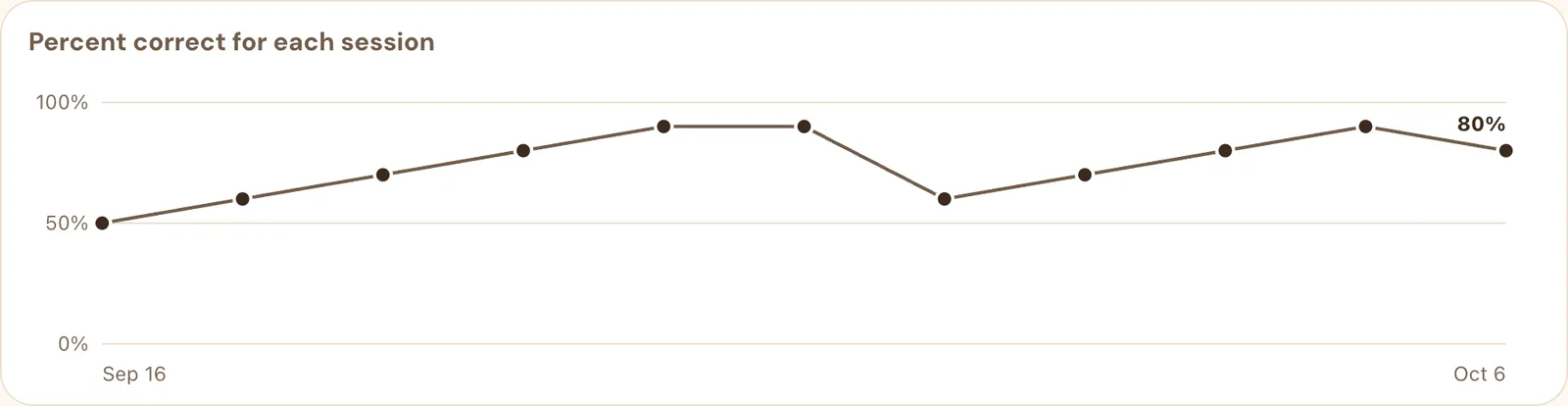
When the list shows one tool, a simple graph is above the list. The graph has one dot for each session, with the oldest session on the left. To open a session, tap its dot.
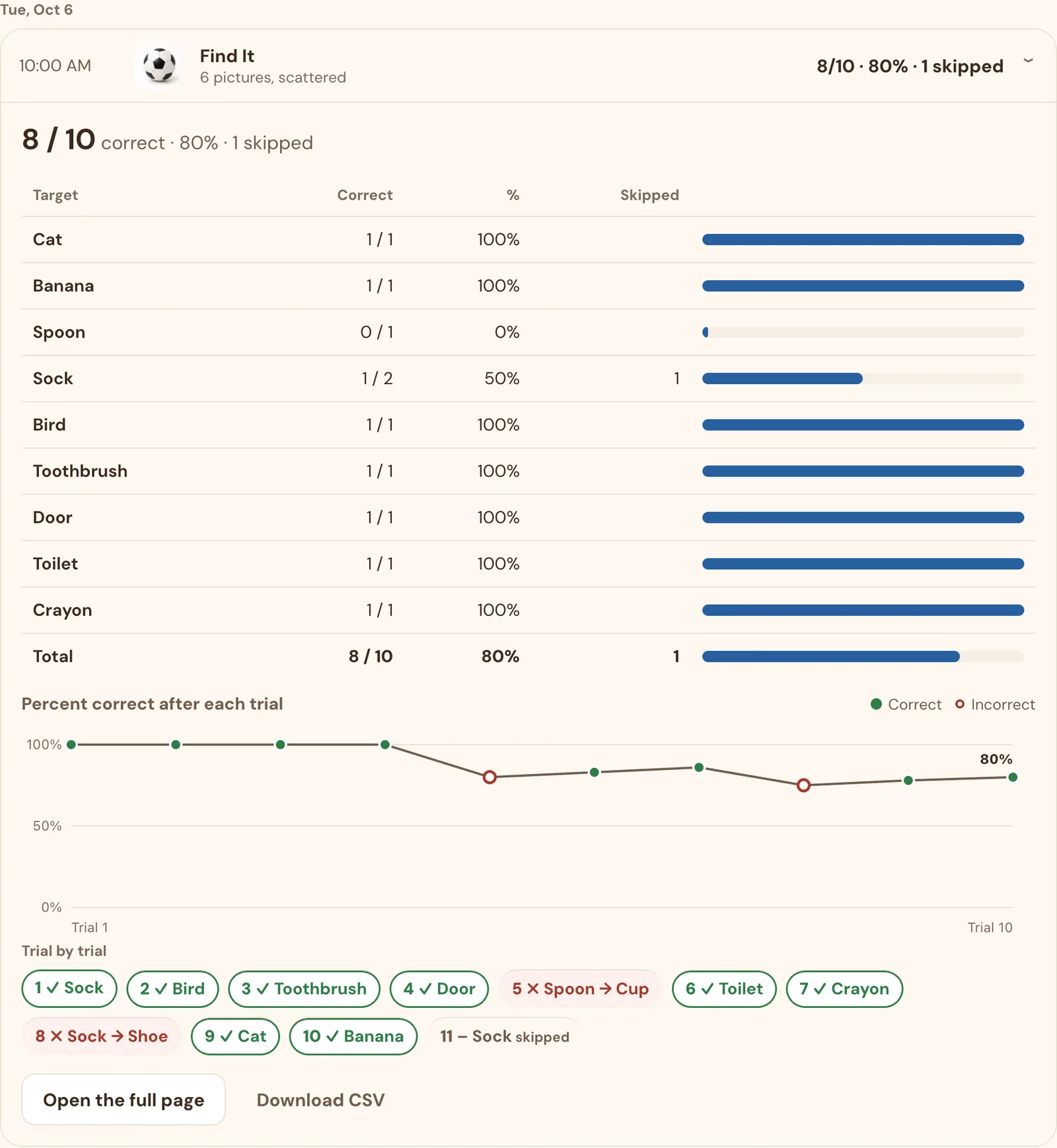
To see a session, tap its row. The session opens in the list, with its data. To close it, tap the row again. To open the session on its own page, tap Open the full page.
A session, trial by trial
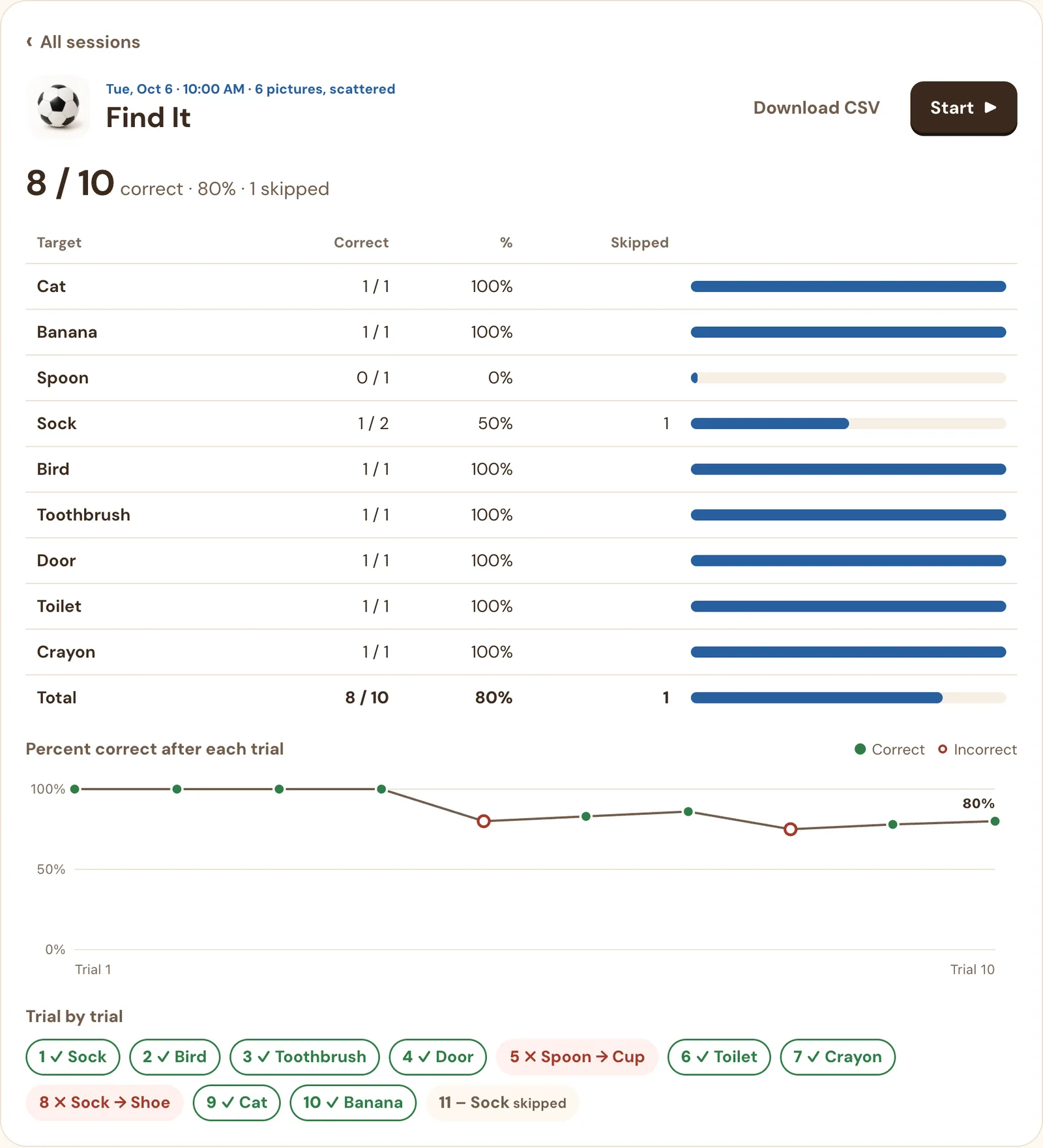
The data of a session has the same layout as the data at the end of a Pronouns Practice round:
- By target: for each target, the number correct, the number of trials, the percent, and the skips. A Total row is at the bottom.
- Graph: the percent correct after each trial. A filled dot is a correct trial. A hollow dot is an incorrect trial.
- Trial by trial: all trials in sequence, with ✓ or ✗. An incorrect trial shows the item that the learner selected, for example Spoon → Cup.
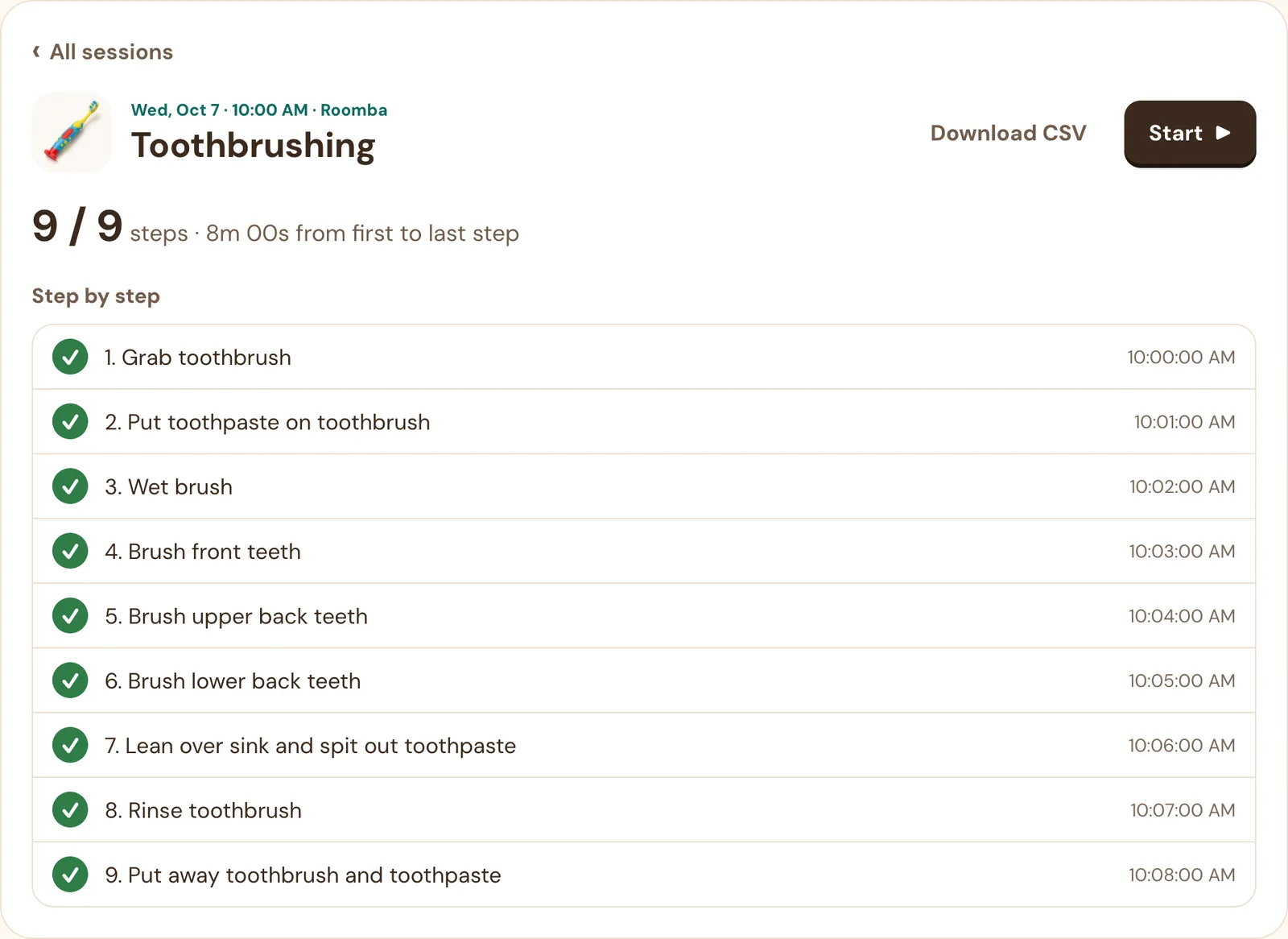
Toothbrushing shows each step in sequence, with the time that the learner did it. My Way shows each press. Observe shows the percent of intervals for each behavior. Then it shows all intervals in a grid.
Export the raw data
Next to Sessions, Export all (CSV) downloads all responses for all tools. The first column is
tool. The Settings page also has Export all (CSV).When the list shows one tool, Export CSV downloads the data for that tool only. In an open session and on the page of a session, Download CSV saves only that session.
Each file has these columns:
date, time, session, condition, event, target, response, correct, detail. You can open the files in Excel, Numbers, or Google Sheets.
Part 6 · Change the settings of a learner BCBA
Open Settings
Tap Settings at the top of the dashboard. The Settings page has all changes for the learner: the tools that are on, add a tool, sharing and the code, the name, and remove or delete. On a wide screen, the list on the left goes to each section.
Add or remove tools
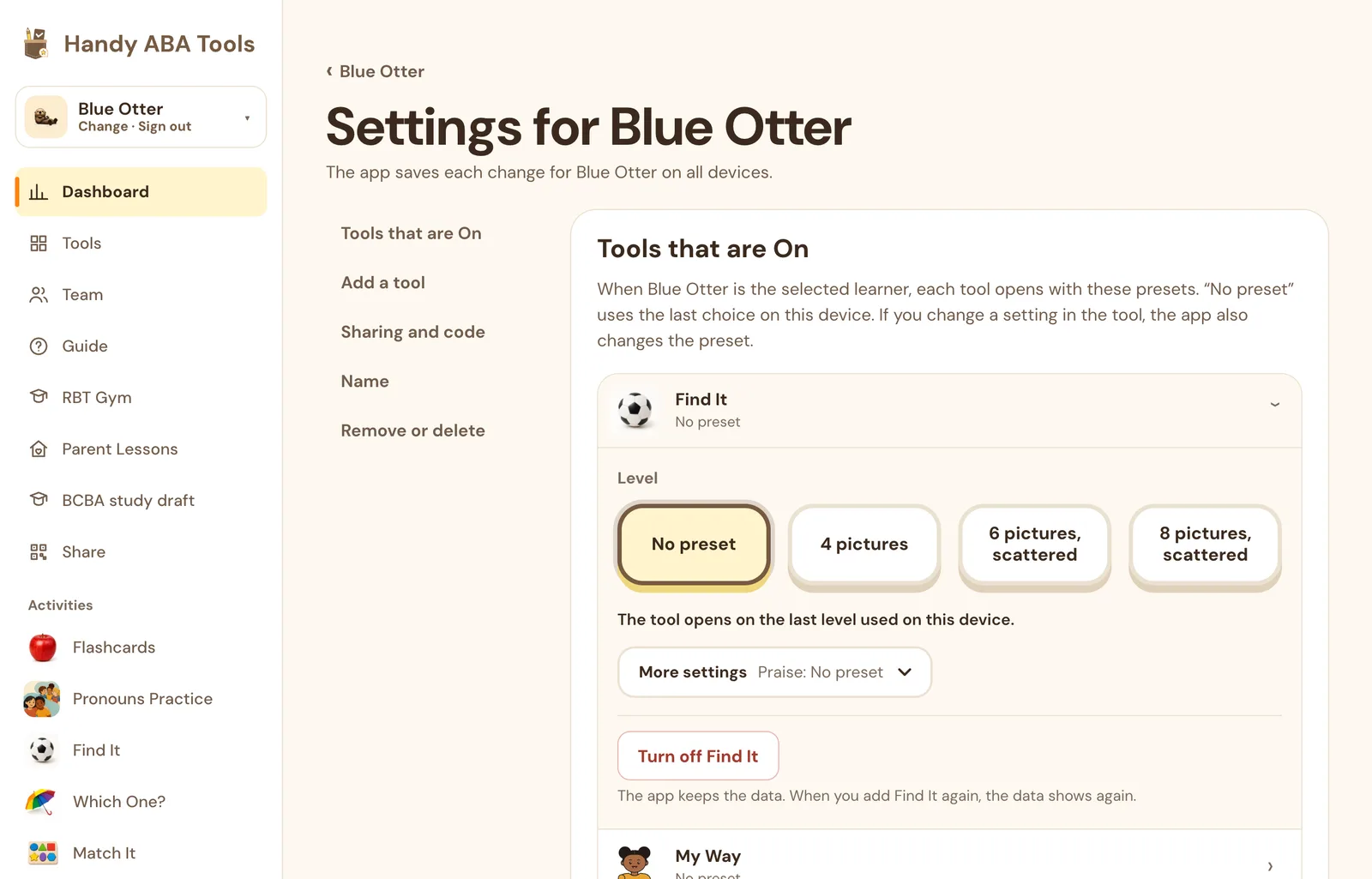
To add a tool, tap Add next to it in Add a tool. The tool then shows in Tools that are On and on the dashboard.
To remove a tool, tap it in Tools that are On, then tap Turn off. The dashboard does not show the tool, and the app stops the save of its data. The app keeps the data. If you add the tool again, the data shows again.
Set the presets for each tool
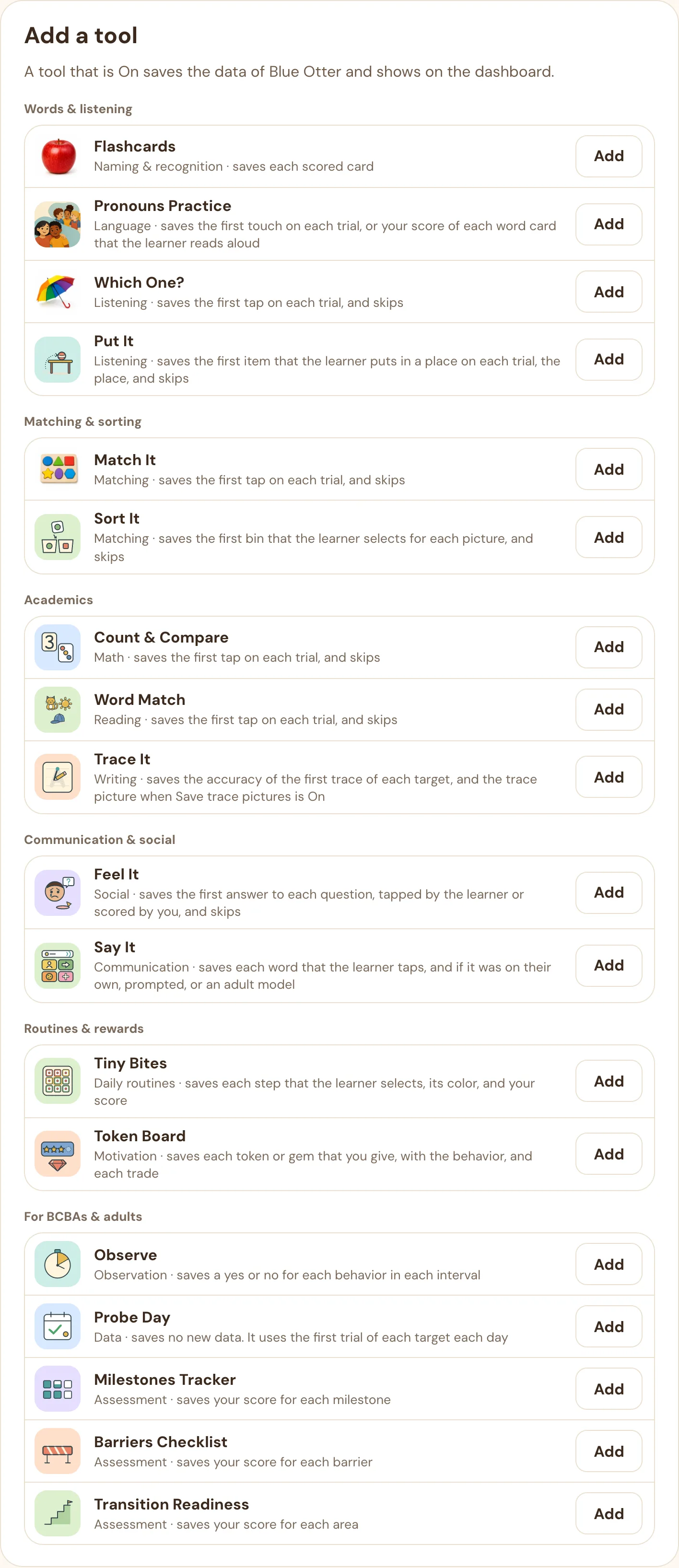
In Tools that are On, each row shows the presets of the tool, for example Level: 6 pictures, scattered. Tap a tool to change them. Only one tool is open at a time.
The settings look the same as the setup screen of the tool. Tap a level card to select the level of the learner. The other settings, for example Praise, are in More settings. When this learner is selected, the tool opens with these settings on all devices.
To use the last choice on the device, select No preset.
If you change a setting in a tool when the learner is selected, the app also changes the preset of the learner. The next session starts with that setting. In guest mode, each tool uses the last choice on the device.
Share, reset the code, rename, or delete
Use these sections of the Settings page. You can also tap Manage next to the learner in the learner menu.
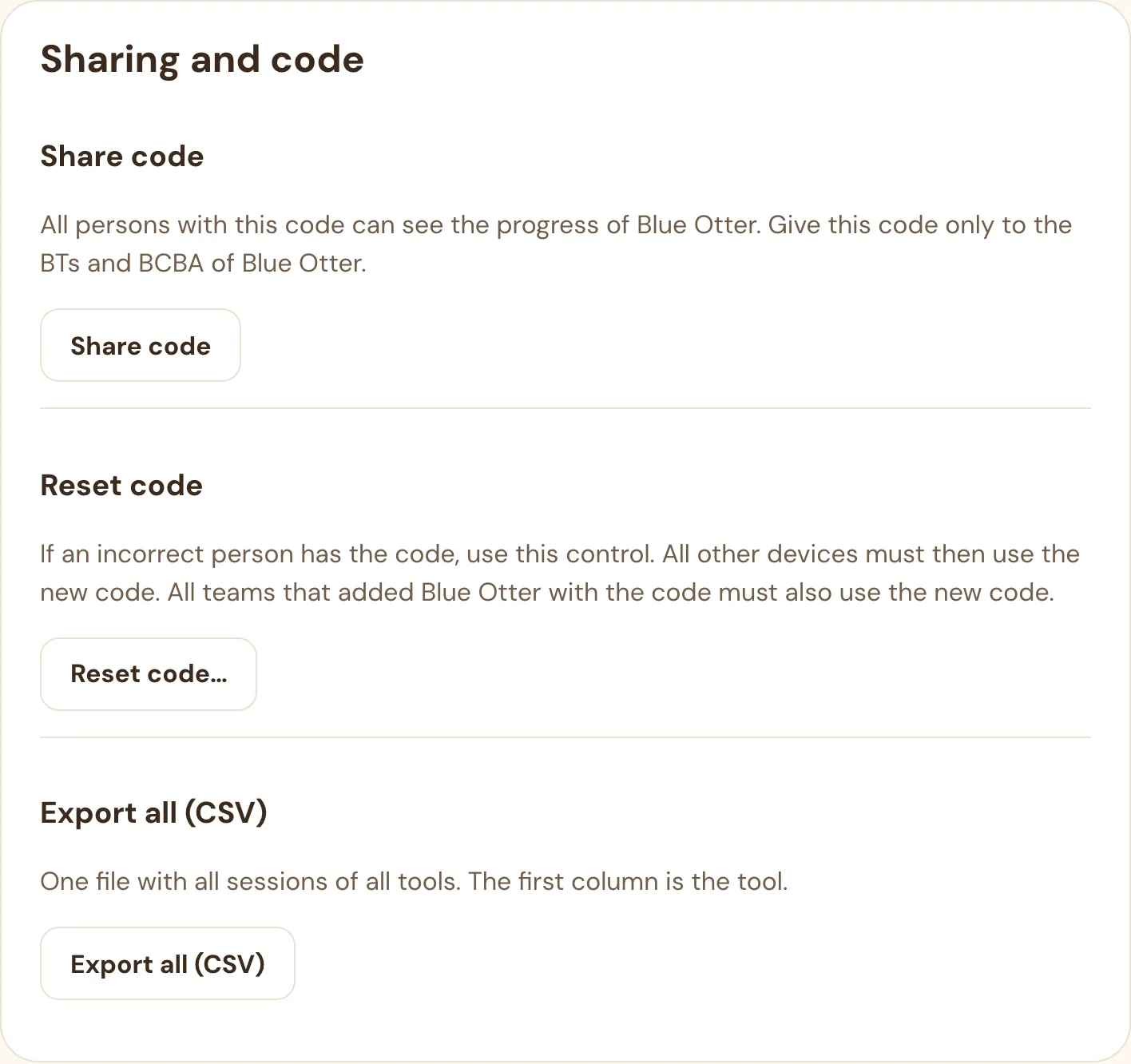
- Share code: shows the code, the join link, and the QR code.
- Reset code: use this if an incorrect person has the code. All other devices and teams that added the learner with the code lose access. To get access again, they must add the new code from Share.
- Export all (CSV): one file with all sessions of all tools.
- Rename (in Name): select a new generated name. The progress and the code do not change.
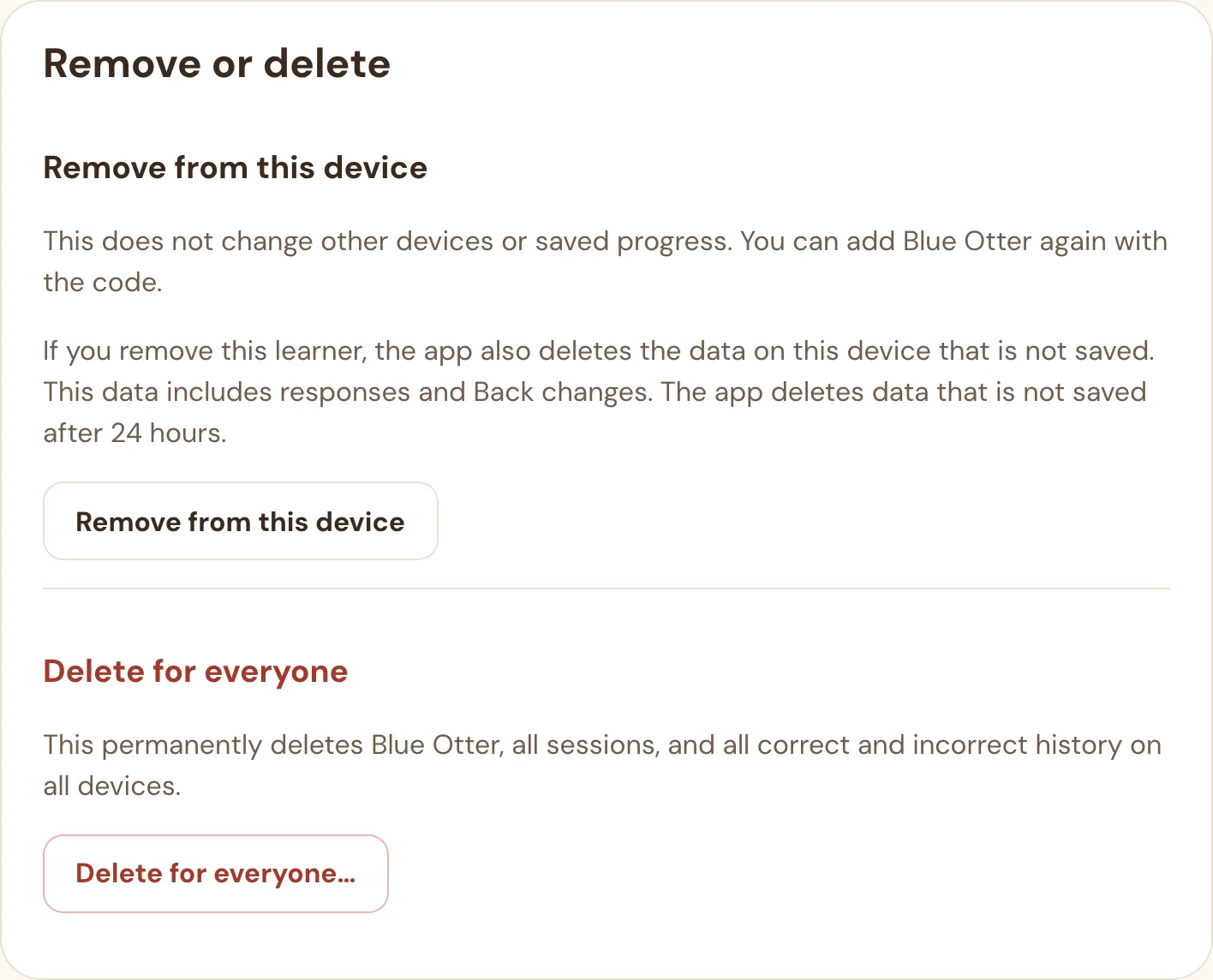
- Remove from this device: the app removes the learner from this device only. The data of the learner does not change. The other devices do not change.
- Delete for everyone: the app permanently deletes the learner and all data of the learner on all devices. To confirm, you must type the name.
Questions
The learner menu says “Code reset. Get the new code from your BCBA.”
A person reset the code of this learner. Get the new code or link from the BCBA of the learner. Then tap Enter new code next to the learner. The app keeps all data of the learner.
I did a session, but the dashboard shows no data.
Examine the label in the activity bar. “Guest” means that no learner was selected. “Not saved · Tap to add” means that the tool was off for that learner. The app never sends guest responses, so you cannot recover them. If the label showed a count, for example “3 not saved,” the responses are on that device. When the device is online again, open Handy ABA Tools on it. The app then saves the responses.
I started a tool by mistake, or I tapped an incorrect answer. How do I cancel it?
Tap Back in the activity bar. On a keyboard, push ⌘Z or Ctrl+Z. Each tap cancels the last saved response and shows that turn again. A response can be a trial, skip, press, step, token, trade, or card score. A canceled response does not count on the dashboard or in Probe Day. If there are no responses, Back goes back to the setup of the tool. A start with no responses never counts. In Observe, Back only cancels a start before the app saves the first interval. Probe Day and the assessments do not have Back.
How do I open the same page on another device?
Tap Share in the activity bar or the sidebar. Then scan the QR code with the camera of the other device. You can also copy, send, or print the link. When a learner is selected, the link can include the learner. The other device adds the learner with the private code, and then opens the same page. To share only the page, select As a guest. The app always shares a dashboard with its learner.
Can I use dark mode?
Yes. On a computer, Handy ABA Tools uses the light or dark setting of your system. Phones and iPads stay light, so the tools look the same for all learners. To change the theme on this device, tap Theme at the bottom of the sidebar. On a phone, Theme is the moon or sun icon at the top. Each tap changes the setting to the next option: Auto, Dark, or Light.
Two BTs use the same iPad. Which learner gets the data?
The data belongs to the learner, not to the adult. The learner that is selected in the learner menu gets the responses. It does not matter who holds the device.
Can I use a tool without a learner?
Yes. All tools work fully in guest mode. In guest mode, the app saves no data.
Where do the milestone, barrier, and transition scores come from?
You give the scores. Milestones Tracker, Barriers Checklist, and Transition Readiness are scoring grids for 170 milestones, 24 barriers, and 18 transition areas. They do not include protocol text or scoring criteria. Score each item from your own copy of the protocol.
What data does Handy ABA Tools keep?
Saved learner records include the generated name, learner ID, tool choices, responses, scores, assessment scores, and dates. Trace It can also save trace pictures. Handy ABA Tools has no fields for real names or diagnoses. Usage analytics are daily counts of tool use, with no learner, person, or device ID. For more, see the Privacy policy. The server keeps a hash of each code. The device keeps the full code.
An incorrect person has the code of a learner.
On the dashboard, tap Settings, then tap Reset code…. The old code does not work after this. Teams that added the learner with the old code lose access. Share the new code with the team.