Communication
Say It
A talker (AAC) for requests and first sentences, with every press counted
A speech board like an AAC device. Each picture button says its word in a recorded voice. The learner can put words together into a sentence. Core words are on the home page. Things, activities, feelings, people, and places are in 6 folders. The board has 92 words. A row of core words is visible on all pages.
When
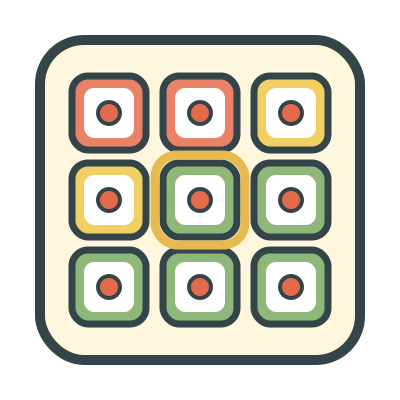
- Teach requests (mands) with a speech-output device, from one large button up to a 12 by 8 grid.
- Use in sessions when the learner does not have a personal device, or to try a layout before an SLP sets up a device.
- Model on the board while you talk to the learner (aided language modeling).
Why
- When the grid becomes larger, the buttons stay in their positions. The learner can find a word by its position.
- I, want, more, help, stop, and all done are in the same row on all pages, and in folders. The learner does not have to look for them.
- Colors follow the Modified Fitzgerald Key that most AAC devices use: people yellow, actions green, describing words blue, things orange, social words pink, questions purple, and no and stop red.
- The app saves each press with the word and the help level: on their own, prompted, or your model. The graph shows the trend toward independent requests.
- The board, its buttons, and the voice are learner presets, so the same board opens on all devices.
How
- The setup screen shows the board as the learner sees it. To change the board, tap Edit board.
- To set the grid size, use −1, +1, and +4 for Columns (up to 12) and Rows (up to 8).
- A new grid is empty. To put a word or folder in a position, tap the empty position. To change or remove a word, tap the filled position. Then tap Done.
- Open More settings. Select if the Core words row shows.
- Select the message bar. Build a sentence adds each word to a bar at the top, and a tap on the bar says the full sentence. Say each word only says the word. It is good for first requests.
- Select a voice and the skin tone of the people and hands in the pictures.
- Tap Play.
- Before you prompt, tap Prompted under Next press. This setting applies to one press. Then it goes back to On their own.
- To model, set Adult model to on. It stays on until you tap it again, and the board shows a dashed outline.
- Folder buttons have a tab and open a page of words. Home goes back. In the bar, ⌫ deletes the last word and ✕ clears the bar. These buttons do not change the data.
- To cancel a press, tap Back. To go back to setup, tap End, then End round. A tap by the learner on End only opens the box, so it does not close the board.
Saved to the dashboard: Each word that the learner presses, with the help level: on their own, prompted, or adult model. Each session shows the presses by word and help level, and all presses in sequence. The graph shows the independent presses for each session. The app never counts model presses as presses by the learner. The app makes a separate session for each grid size, and for core row on or off.