Listening
Which One?
Listener responding by function, feature, and class
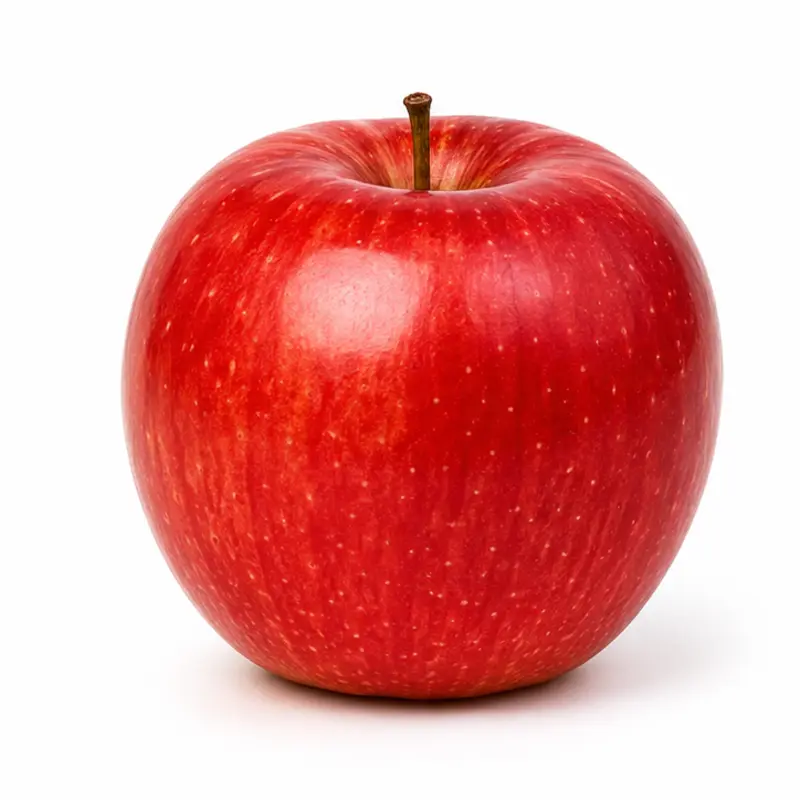
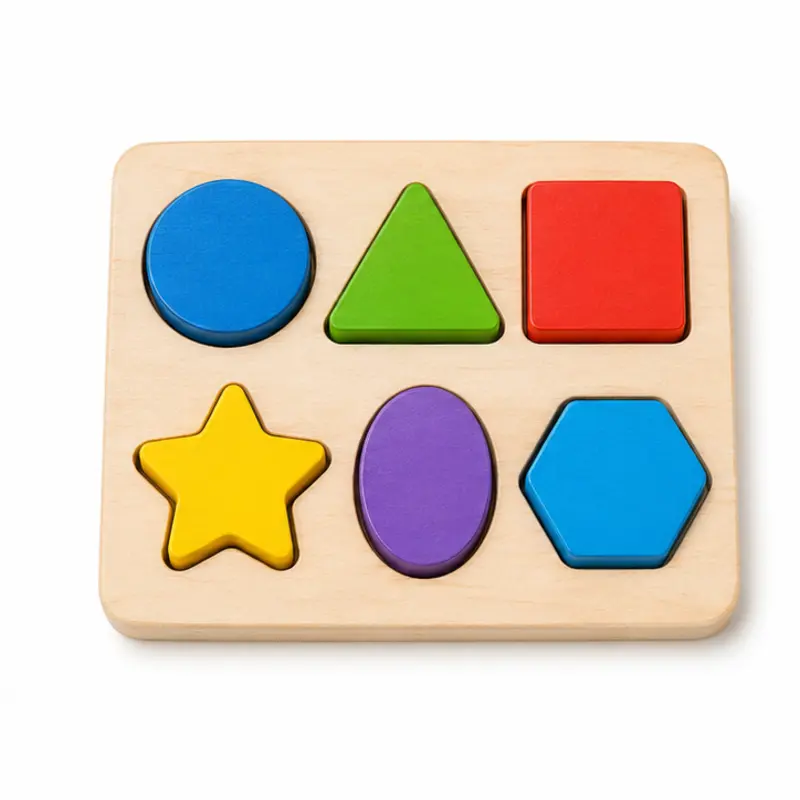
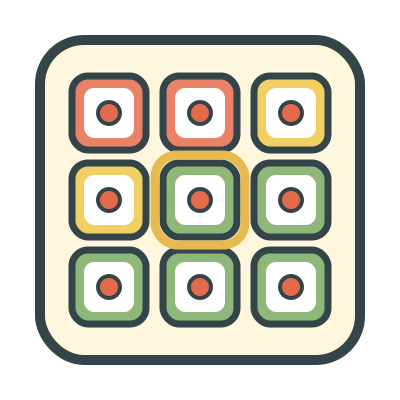
The learner hears a question, for example “Which one do you eat?”, “Which one has wheels?”, or “Which one is an animal?” Then the learner taps the answer in a group of 3, 4, or 6 photos.
When
- Use after the learner can find these pictures by name, for example in Find It.
- Teach what items are for, what they have, and what group they are in.
- Prepare for intraverbal answers to the same questions.
Why
- The recorded voice asks each question the same way for each trial.
- Some items can also be a fair answer, for example a toilet for “sit on” or a grocery store for “eat”. These items never show as incorrect choices.
- Some questions have more than one answer, for example dog, cat, bird, and fish for “animal”. The app uses all of these answers in turn.
- If the learner taps an incorrect picture, the app highlights the correct picture and asks again. This is a prompt. The app does not score it as correct.
How
- On the setup screen, select a level:
- What it is used for · 3 pictures — Questions about what you do with an item (function). For example, “Which one do you eat?” The learner selects from 3 pictures.
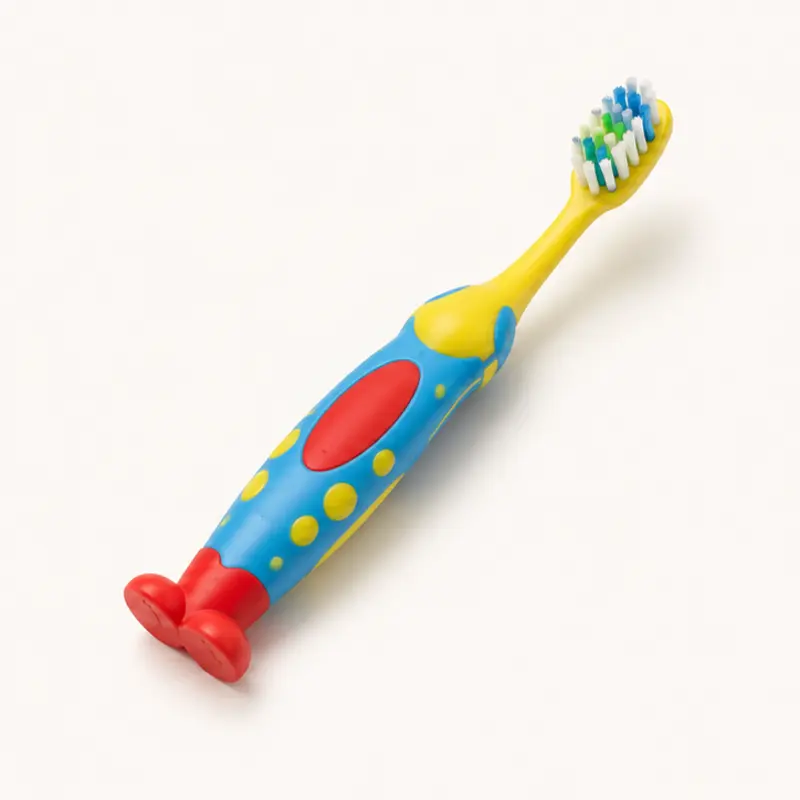
- What it has · 4 pictures — Questions about a part or a visible detail of an item (feature). For example, “Which one has wheels?” The learner selects from 4 pictures.
- What kind it is · 4 pictures — Questions about the category of an item (class). For example, “Which one is an animal?” The learner selects from 4 pictures.
- All question types · 6 pictures, scattered — A mix of questions about function, parts, and categories. The learner selects from 6 pictures at different angles and positions. Each item has 3 different photos.
- In More settings, under Praise, select:
- On — After a correct answer, the app also plays a short praise phrase, for example “Great job!”
- Off — After a correct answer, the app shows the star and goes to the next turn. The app plays no praise.
- Tap Play. The app plays the first question immediately. To hear the question again, tap the speaker button. The question also shows as text for you.
- Let the learner respond. If the tap is correct, the learner gets stars, and the next trial starts. If the tap is incorrect, the app prompts the correct answer.
- Use Skip, Log, Reset count, and End the same way as in Find It. Each round has 10 trials.
Saved to the dashboard: The first tap on each trial, and skips. Each question is a target. The most frequent errors show the picture that the learner selected. A change of level starts a new phase on the graph.