Listening
Find It
Listener responding: the learner hears a word and taps the picture
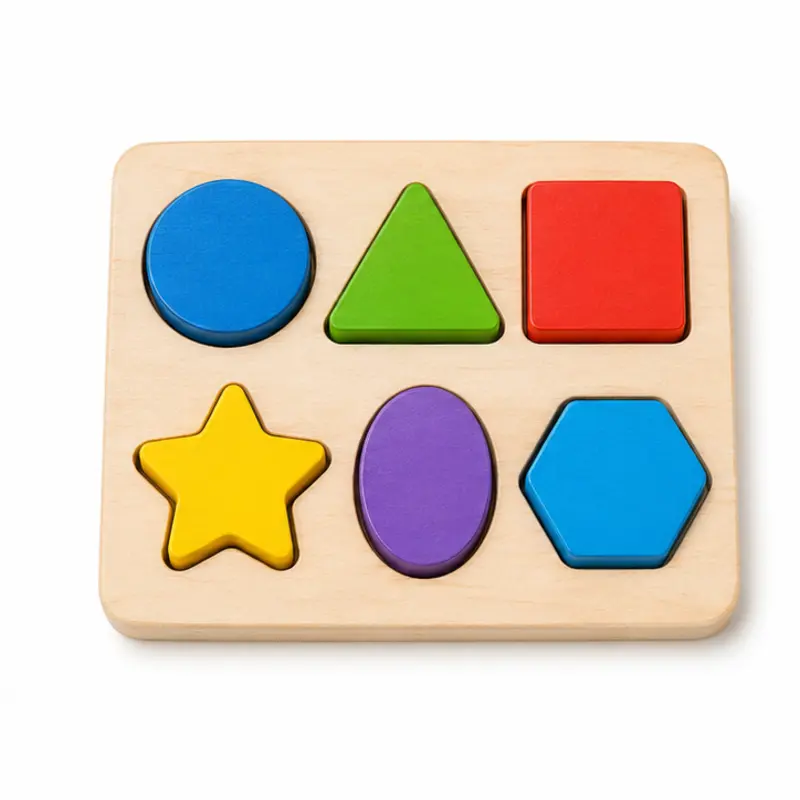
The learner hears a word and taps the correct photo in a group of 4, 6, or 8 pictures. At more difficult levels, the pictures are at different angles and positions, and each word has more photos.
When
- Teach receptive identification of nouns (“Touch the ball”).
- Make the task more difficult in steps after the learner meets criterion at a level.
- Use for short, independent rounds. The app gives the instruction.
Why
- The recorded voice gives the same instruction for each trial.
- Two pictures that contain or look like each other never show in the same array. An example is a firefighter and a helmet.
- If the learner taps an incorrect picture, the app highlights the correct picture and says the word again. This is a prompt. The app does not score it as correct.
How
- On the setup screen, select a level:
- 4 pictures — The learner selects from 4 pictures in rows. This level uses 20 words, with 1 photo for each word.
- 6 pictures, scattered — The learner selects from 6 pictures. The pictures are at different angles and positions. This level uses 40 words, with 1 photo for each word.
- 8 pictures, scattered — The learner selects from 8 pictures. The pictures are at different angles and positions. This level uses 50 words, with 3 different photos for each word.
- In More settings, under Praise, select:
- On — After a correct answer, the app also plays a short praise phrase, for example “Great job!”
- Off — After a correct answer, the app shows the star and goes to the next turn. The app plays no praise.
- Tap Play. The app plays the first word immediately. To hear the word again, tap the speaker button.
- Let the learner respond. If the tap is correct, the learner gets stars, and the next trial starts. If the tap is incorrect, the app prompts the correct answer.
- If the learner is not ready to respond, tap Skip. The app does not count a skip as an error.
- Each round has 10 trials. Log shows all trials. To start a new session, tap Reset count, then tap Reset count again in the box below it. Keep playing or a tap anywhere else closes the box.
- To practice a word again, tap Next time on its row in the Log. The word comes back one time in the next round (Play again or the next Play). The app removes the word from the list when the learner answers it. The round-end screen shows the list. On the setup screen, tap Next time to see the list. To remove a word from the list, tap ×. When a learner is selected, the list goes with the learner to all devices. The original trial does not change in the data.
- The level does not change during a round. To change the level, tap End, then End round (or Change level after a round). The setup screen opens.
- After a round, tap Back to dashboard to go to the dashboard of the learner. When no learner is selected, this button is All tools. Play again starts a new round, and Change level opens the setup screen.
Saved to the dashboard: The first tap on each trial, and skips. A change of level starts a new phase on the graph.