Matching
Sort It
Sorting pictures by class, function, or feature
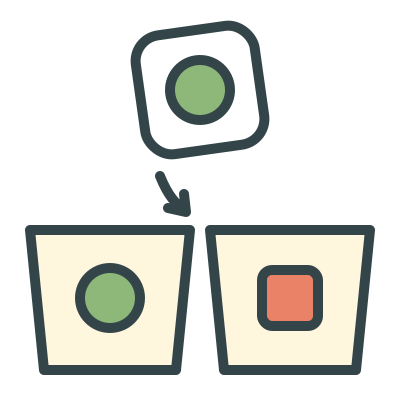
Two or three bins are at the bottom. Each bin has an example picture and a name, for example Animals, Things you wear, or Things with wheels. One picture at a time shows above the bins. The learner drags the picture into the correct bin, or taps that bin. With 5 pictures at a time, the bins move to the top, and 5 pictures are in a row below them. The learner sorts all 5 in any sequence. For learners who can read, the bins can show only their names. Each bin has a play button at the left of its name. The learner taps it to hear the name. You can set Drag and drop to off. Then only taps work.
When
- Use after the Same kind of thing level in Match It, when the learner can match items from the same group one at a time.
- Teach categories before listener or intraverbal work by function, feature, and class (Which One?).
- Examine if a learner puts different photos of different items into groups, not only identical pictures.
Why
- By default, each bin shows an example. The learner can sort and does not have to read the name of the bin. If your program includes the bin names, the learner can tap the play button on a bin to hear its name, or you can say the names.
- Name only removes the pictures from the bins. Then the learner reads the names, or you say the names aloud.
- Two bins that can hold the same item never show together. For example, Toys is never next to Vehicles, because a bicycle can go in the two bins.
- Each bin gets an equal number of pictures. No bin is the answer 3 times in sequence. The learner cannot sort by position.
- If the learner selects an incorrect bin, that bin shakes and the correct bin glows. This is a prompt. The app does not score it as correct.
How
- On the setup screen, select a level:
- Sort by kind · 2 bins — Sort into 2 categories (class), for example animals and clothes.
- Sort by kind · 3 bins — Sort into 3 categories (class), for example animals, clothes, and dishes.
- Sort by use · 2 bins — Sort by what you do with an item (function), for example things you wear and things you eat. There are 2 bins.
- Sort by use · 3 bins — Sort by what you do with an item (function), for example things you wear, eat, or play with. There are 3 bins.
- Sort by parts · 2 bins — Sort by a part or a visible detail that the items have (feature), for example things with wheels and things with fur. There are 2 bins.
- In More settings, under Categories, select the categories for the rounds, for example Fruit and Clothes. If all are off, the rounds use all the categories of the level. If the selected categories cannot be in one round, Play is off, and a note above it gives the reason.
- Under Bins show, select:
- Example picture + name — Each bin shows an example picture and its name. A learner who cannot read can use the picture.
- Name only — Each bin shows its name, with no example picture. Use this setting if the learner can read the names, or if you read the names aloud.
- Under Pictures at a time, select:
- 1 picture — One picture is above the bins. After the learner sorts it, the app shows the next picture.
- 5 pictures — The bins are at the top. 5 pictures are in a row below the bins. The learner sorts all 5 pictures in any sequence. Then the app shows 5 more pictures.
- Under Drag and drop, select:
- On — The learner can drag the picture to the answer, or tap the answer.
- Off — The learner taps the answer. The picture does not move.
- In More settings, under Praise, select:
- On — After a correct answer, the app also plays a short praise phrase, for example “Great job!”
- Off — After a correct answer, the app shows the star and goes to the next turn. The app plays no praise.
- Tap Play.
- The small line under the picture tells you the correct bin. In a row of 5, the line is for the raised picture. A tap on a bin sorts this picture. The learner can tap a different picture to raise it, or drag a picture directly to a bin.
- Let the learner drag the picture or tap a bin. If the sort is correct, the picture goes into its bin, and the next trial starts. If the sort is incorrect, the app prompts the correct bin.
- Use Skip, Log, and Reset count the same way as in Find It. End goes back to setup. Each round has 10 pictures, and the bins change for each round. Next time in the Log brings back that photo in the next round, with bins that it can go in.
Saved to the dashboard: The first bin that the learner selects for each picture, and skips. Each category is a target (Animals, Things you wear). The most frequent errors show the bin that the learner selected. These changes start a new phase on the graph: a change of level, a change between Example picture + name and Name only, and a change between 1 and 5 pictures at a time. A change to Drag and drop or to Categories does not start a new phase: taps work with the two Drag and drop settings, and each category is a target. A tap on a play button is not saved.